

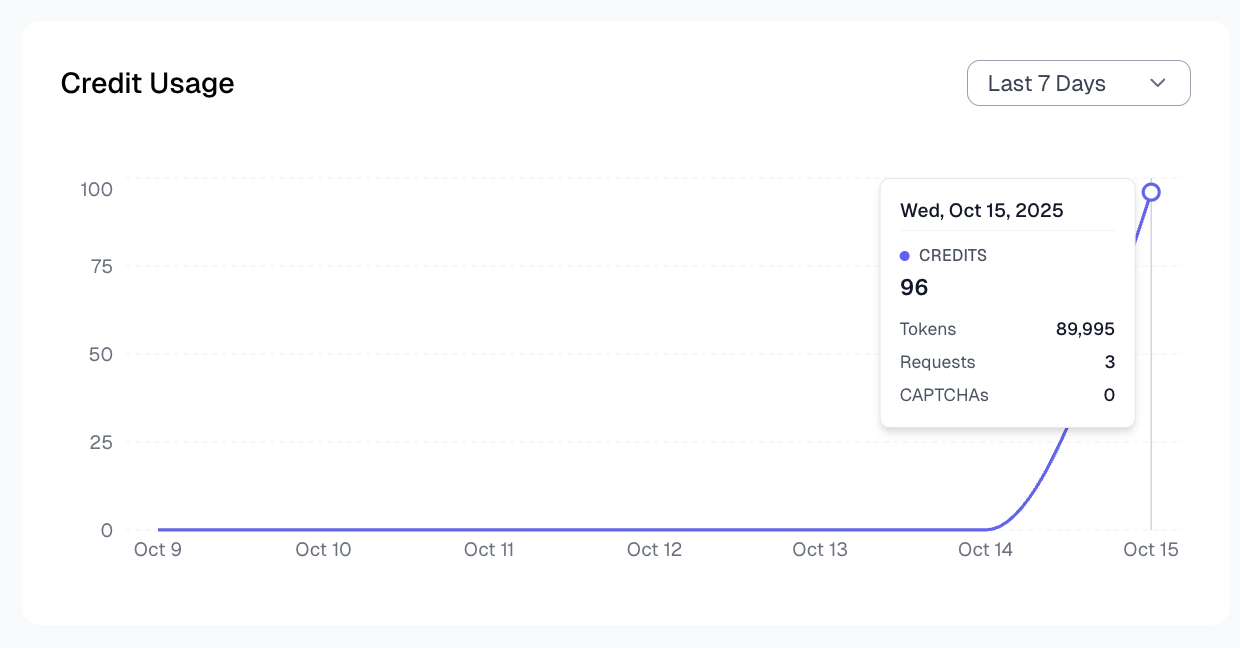
Spidra tracks your usage automatically and gives you a visual breakdown right in your dashboard. You can see how many credits you have spent, how many scrapes you have run, how many CAPTCHAs were solved, and more, all filterable by time range. Spidra usage analytics chart If you want to work with usage data programmatically, for example to build an internal dashboard or set up custom alerts, use the Usage Stats API endpoint.
GET https://api.spidra.io/api/usage-stats?range=7d
The endpoint accepts 7d, 30d, or weekly as the range parameter and returns the same data the dashboard chart displays, including credits, requests, crawls, tokens, CAPTCHAs, and latency. See the Usage Stats API reference for the full response schema and authentication details. This helps you stay on top of your spending, catch unexpected spikes, and decide when you need more credits or a higher plan.

Time Ranges

You can filter the chart by three time ranges:
RangeWhat it shows
7 daysDaily usage for the past 7 days
30 daysDaily usage for the past 30 days
WeeklyWeek-by-week totals for the past 7 weeks
Click the range selector above the chart to switch between views.

What the Chart Tracks

The usage chart covers six metrics. You can toggle each one on or off depending on what you want to focus on.
MetricWhat it means
Credits consumedTotal credits spent in the selected period
RequestsNumber of scrape jobs submitted
CrawlsNumber of crawl jobs submitted
Tokens usedRaw token count from AI extraction (input + output)
CAPTCHAs solvedNumber of CAPTCHAs Spidra bypassed on your behalf
Avg latencyAverage response time in milliseconds across your requests

Your Credit Balance

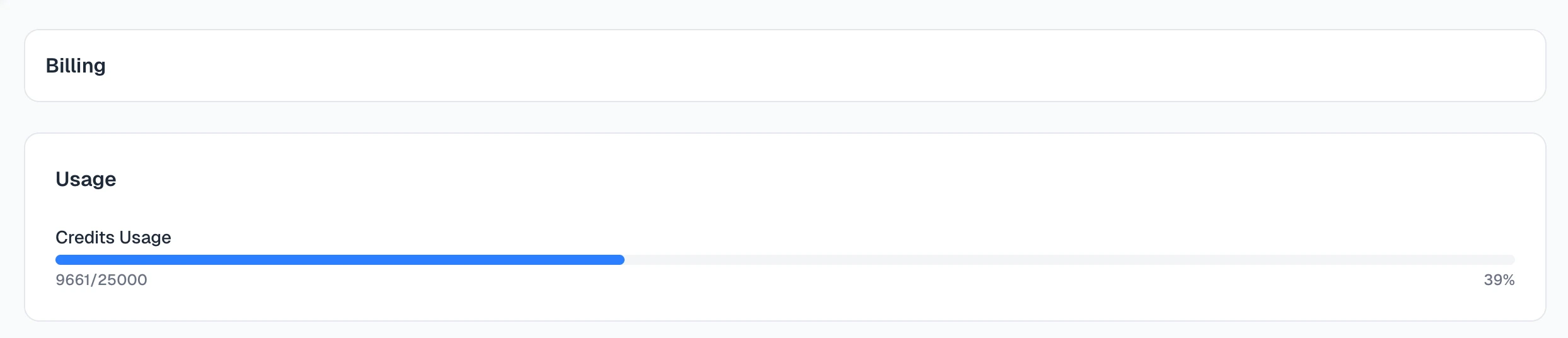
At the top of the Billing page you will see your current credit balance as a progress bar. It shows:
  • How many credits you have used this billing cycle.
  • How many you have remaining.
  • Your total monthly allowance from your plan.
  • Any top-up credits you have available.
Spidra credit usage progress bar