

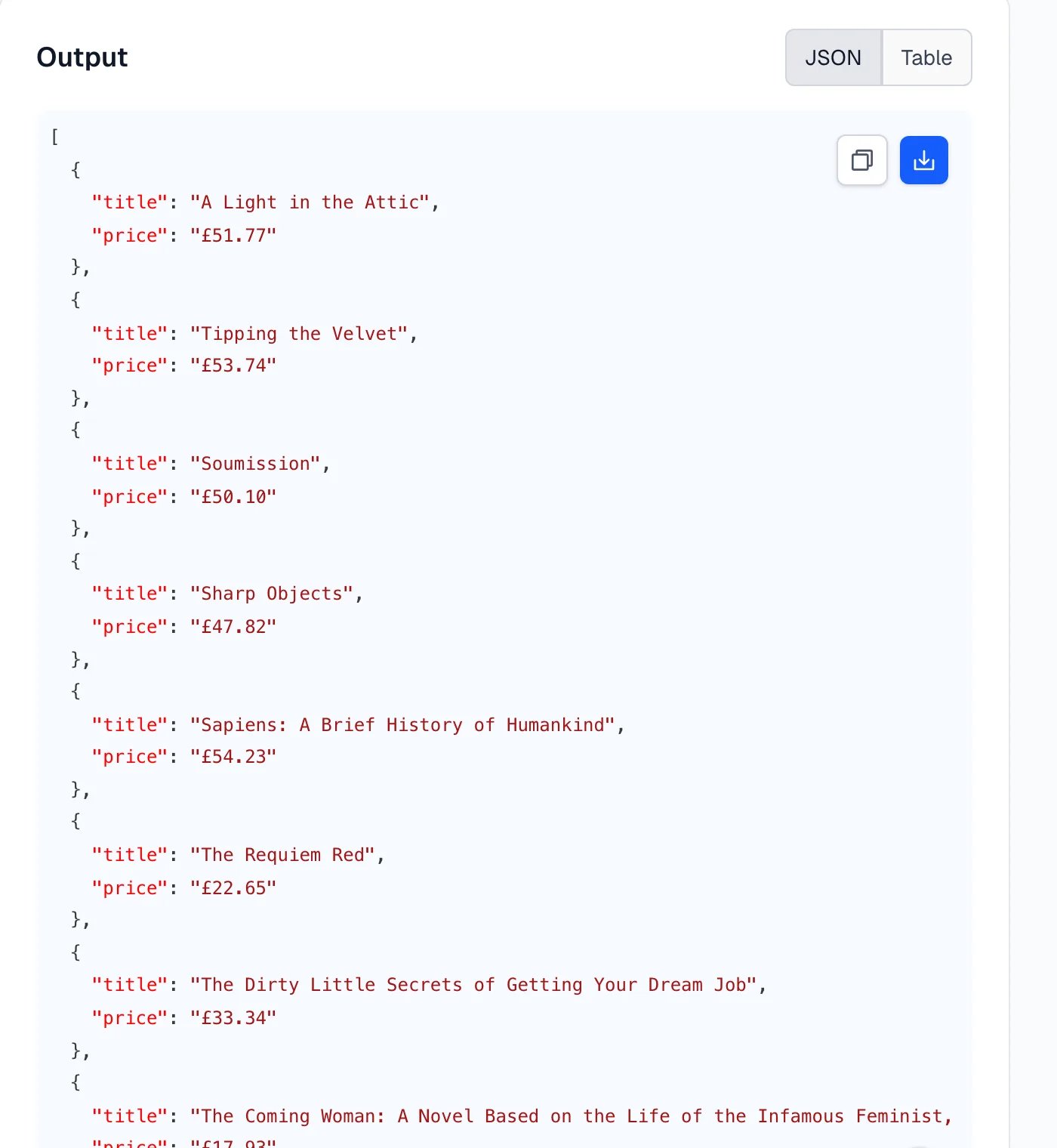
Run your first scrape
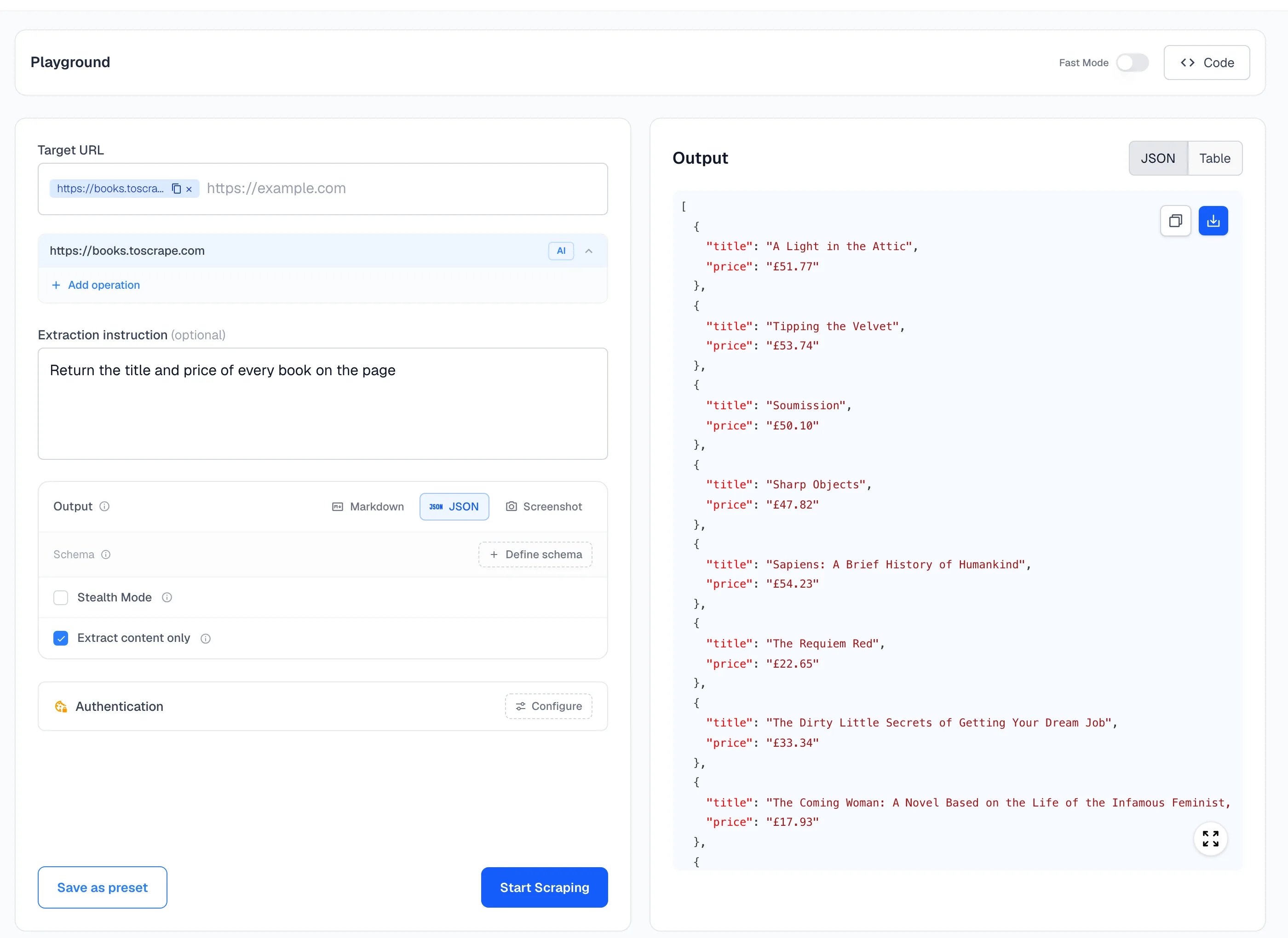
- Open Scrape in the sidebar.
- Enter
https://books.toscrape.comin Target URL and press Enter. - Write
Return the title and price of every book on the pagein Extraction instruction. - Choose JSON under Output.
- Click Start Scraping.
The form, control by control
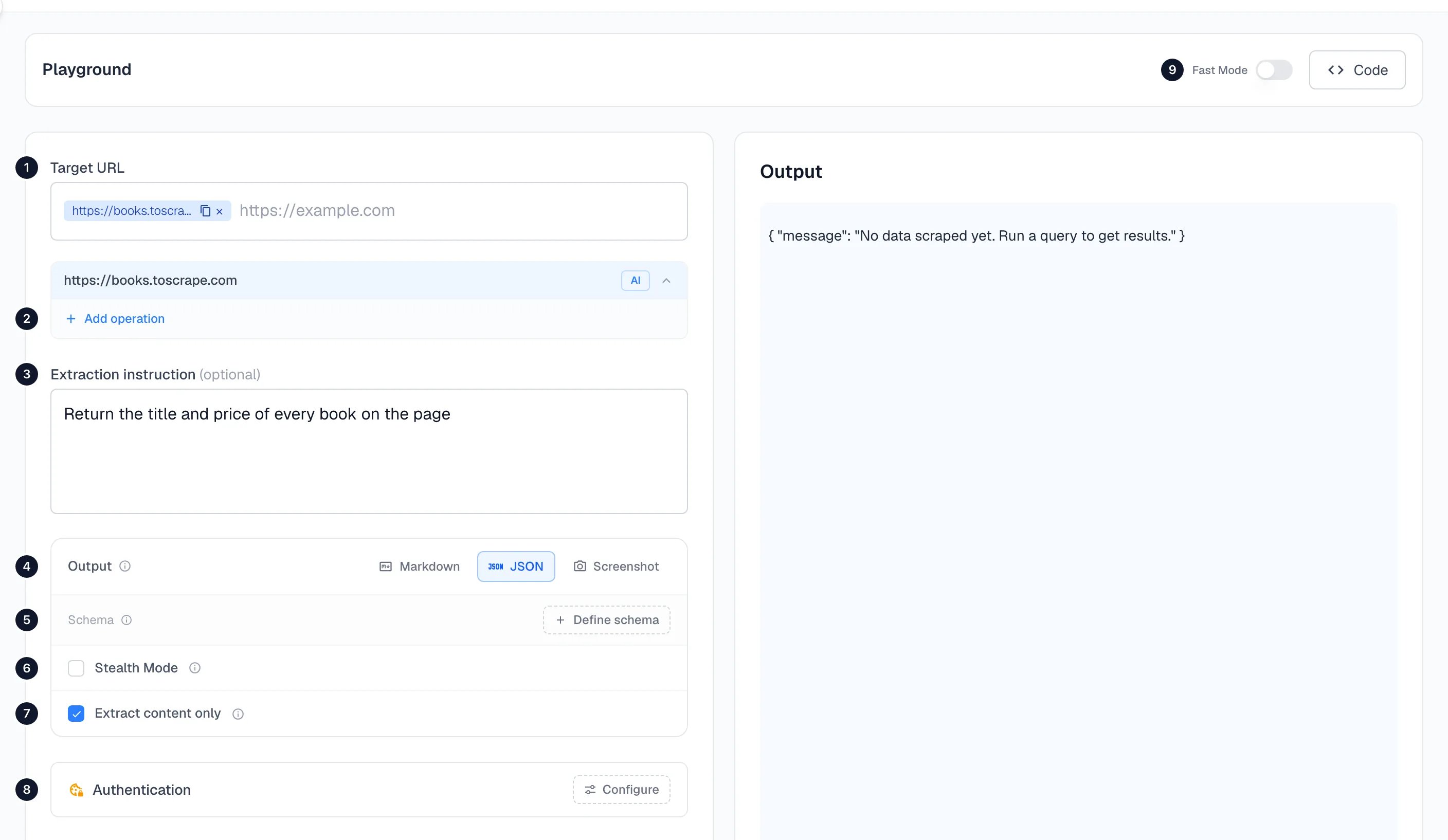
1. Target URL
Type or paste a URL and press Enter. It becomes a chip. Add up to 3 URLs and Spidra combines what it reads from all of them into one result, which is useful for comparing pages or answering one question from several sources. If you want a separate result for each URL, use Batch scrape.2. Operations
Each URL has an Add operation button. Operations are steps Spidra performs on the page before it reads it: click a button, type into a field, scroll, wait, or loop over every item withforEach. They suit pages that hide content behind a cookie banner, a Load more button or a search box.
A URL with operations is marked AI or CSS. In AI mode you describe the element in plain English, such as Click the accept cookies button. In CSS mode you give a selector, such as #submit-button, when you want exact control.
See Browser actions for every operation type and worked examples.
3. Extraction instruction
This is the prompt. Describe the data you want in plain language and name the fields.- Weak:
Get the books - Better:
Return the title and price of every book on the page
4. Output
5. Schema
Define schema opens an editor where you describe the exact shape of the result. Use it when the result feeds a database or another program and the field names and types must not change.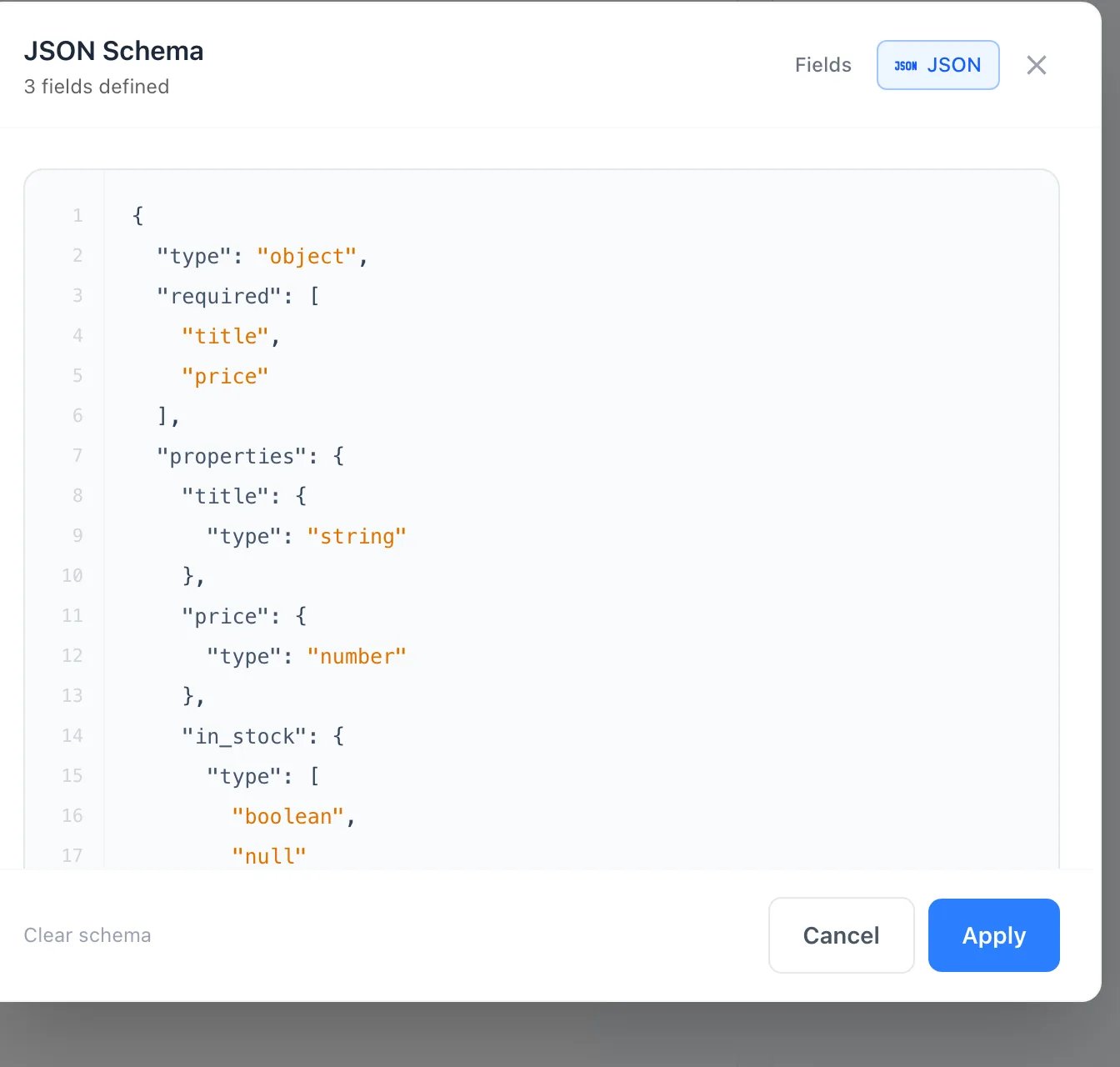
title, price, currency, in_stock and rating returns exactly those fields:
price is now a number and not the string "£51.77". rating is null because that site stores the star rating in the page’s HTML and not in its text. This run cost 2 credits. Read Structured output for how to write schemas.
6. Stealth Mode
Sends the request through a residential proxy, and you can choose the country. Turn it on for sites that block ordinary traffic or show different content by region. It uses proxy bandwidth, which is separate from credits. See Stealth Mode.7. Extract content only
On by default. It removes menus, headers and footers so the AI reads the main content of the page. Turn it off if the data you need lives in the navigation or footer.8. Authentication
Configure lets you pass your own session cookies so Spidra can read pages that sit behind a login. See Authenticated scraping.9. Fast Mode
A switch at the top right. With Fast Mode on, Spidra fetches the page over plain HTTP instead of opening a browser. It is quicker for static pages, and it turns off operations, screenshots and Stealth Mode. If a page needs a browser, Spidra falls back to one automatically.Get the code for any run
Click Code at the top right and Spidra generates the matching request for the settings in your form, in JavaScript, Python or curl, using the API key you select.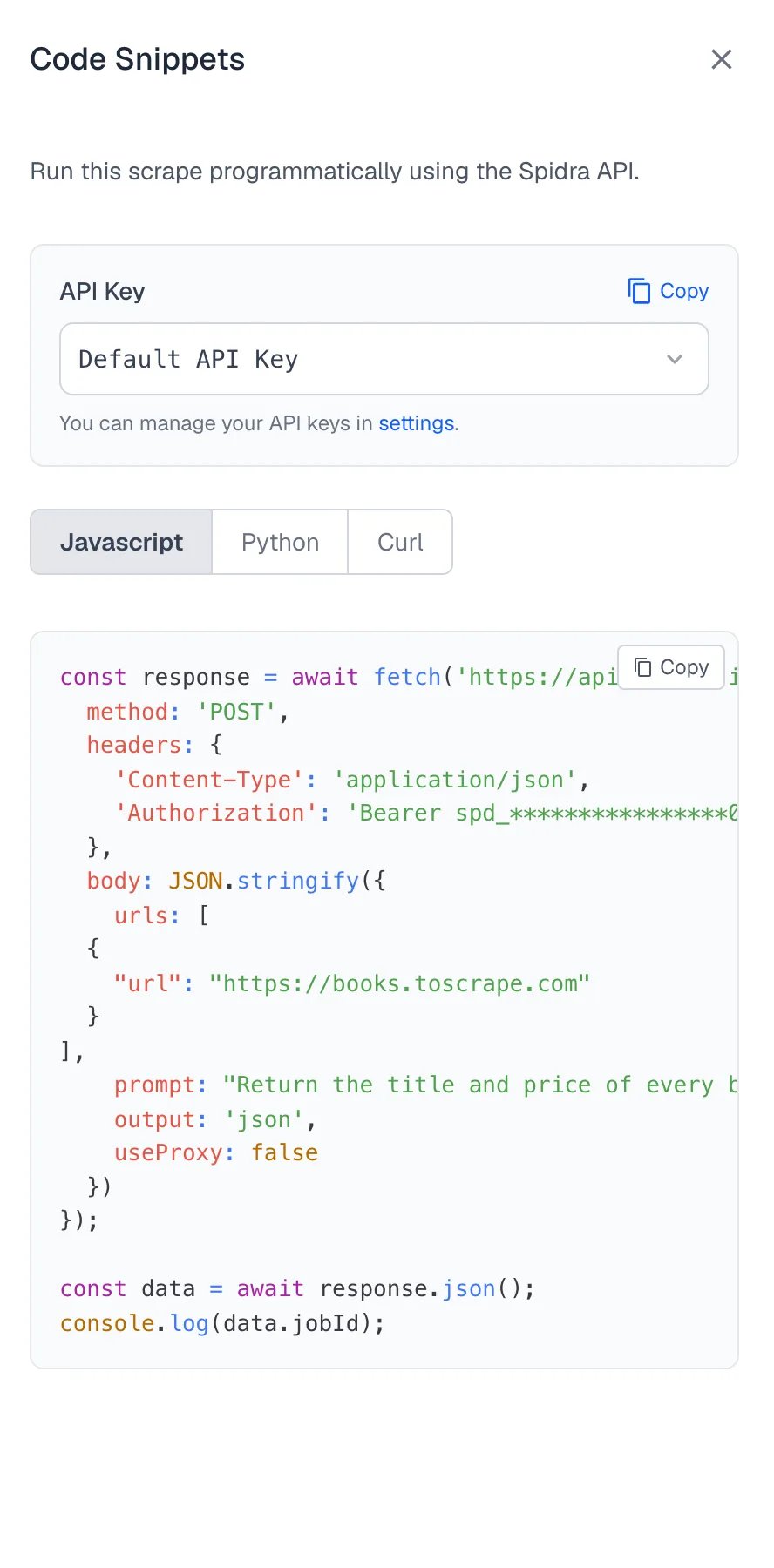
jobId. Fetch the job to read the result, as shown in the Quickstart.
Reuse a setup
Save as Preset stores the URL, instruction, schema and options so you can rerun the same scrape with one click. See Presets, or find ready-made ones in the Marketplace.When the result isn’t what you expected
- The output is empty or
{}. The page may not contain what you described, or it loads content after the first view. Add an operation to scroll or click, or check the page in the Screenshot output. - A field is
null. The value isn’t in the page’s text. Find it in the page first, then adjust the instruction. - The scrape fails. You aren’t charged for a failed job. Check Logs for the error.
- The page is blocked. Turn on Stealth Mode.
Crawl a site
Follow links and get one result per page
How credits work
What each scrape costs