Create an account, run your first scrape from the dashboard or the API, and see exactly what comes back.
By the end of this page you will have scraped a real page and have its data as JSON. The example is books.toscrape.com, a practice site made for this, and the goal is to get the title and price of every book on the page.Want the bigger picture first? Read How Spidra works.
Sign up with your email, Google or GitHub. New accounts get 300 free credits and no card is needed. A scrape like the one below costs 3 credits, so you have plenty to experiment with. See Plans and pricing for what comes after.Every account gets a first API key automatically. You can find it, or create more, under API Keys in the dashboard.
Store the key in an environment variable called SPIDRA_API_KEY and keep it out of source control.
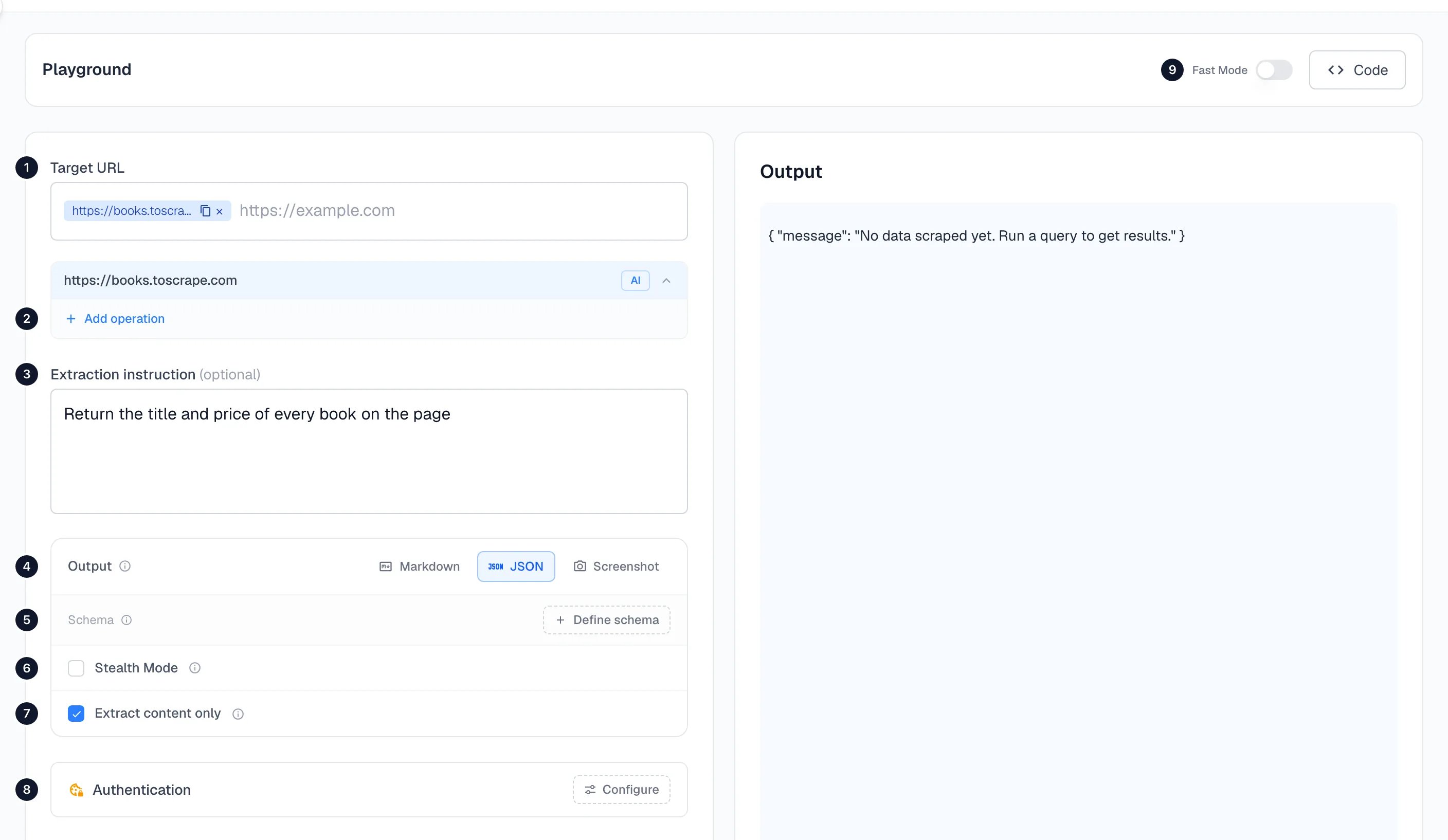
Click Scrape in the sidebar. The form has everything you need on the left, and the result appears on the right.
In Target URL, enter https://books.toscrape.com and press Enter.
In Extraction instruction, write what you want in plain English: Return the title and price of every book on the page.
Under Output, choose JSON.
Click Start Scraping.
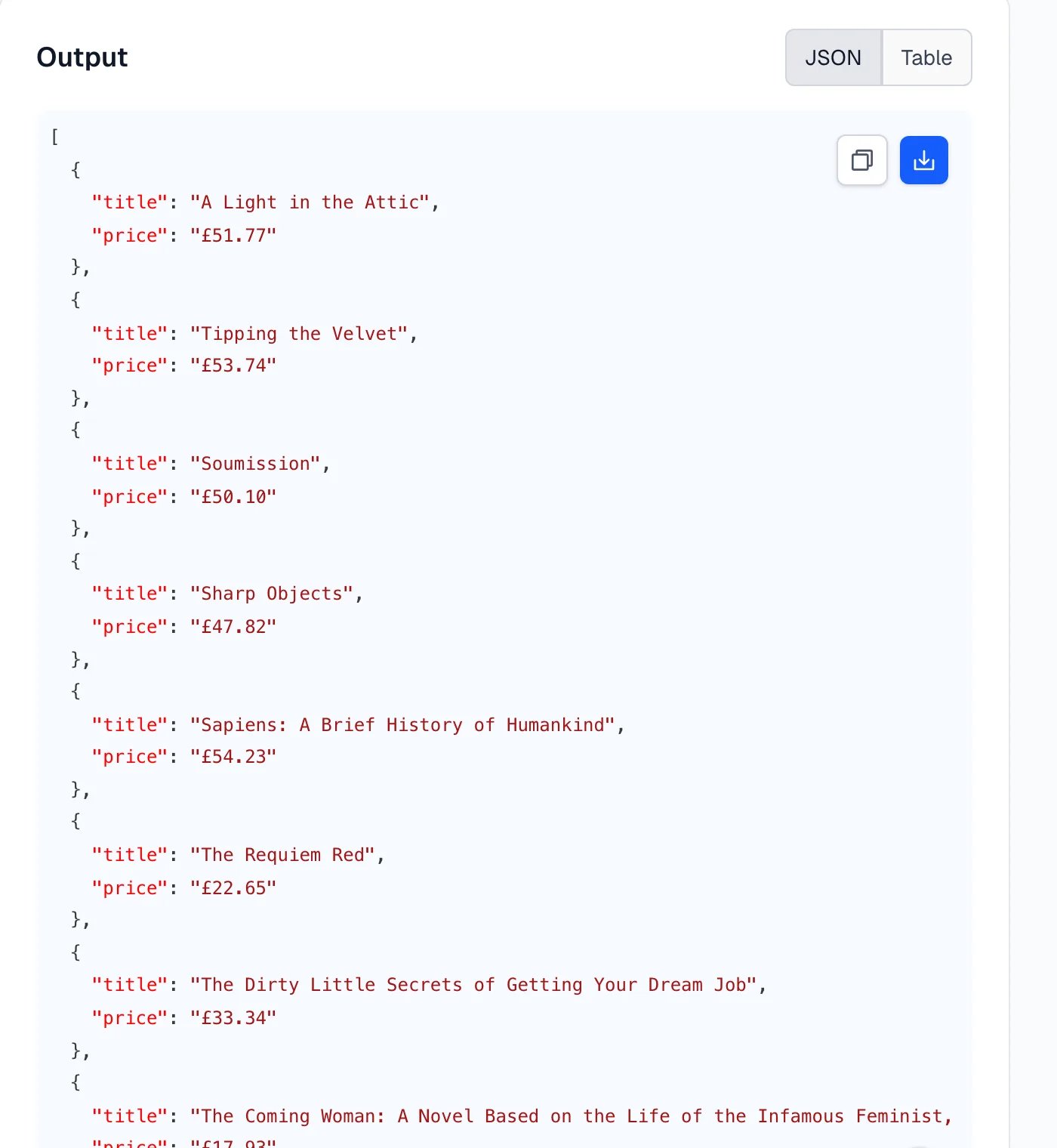
After about ten seconds the output appears. For this page it is a list of 20 books:Use the Table toggle to see the same data as rows, and the copy and download buttons to take it with you. This run used 3 credits: 1 for the page and 2 for the AI extraction.
Scrapes run as jobs. You send the request, get a jobId straight away, then fetch the result when it’s ready. The SDKs wait for you, so the code is shorter.
curl -X POST https://api.spidra.io/api/scrape \
  -H "Authorization: Bearer $SPIDRA_API_KEY" \
  -H "Content-Type: application/json" \
  -d '{
    "urls": [{ "url": "https://books.toscrape.com" }],
    "prompt": "Return the title and price of every book on the page",
    "output": "json"
  }'
// npm install spidraimport { SpidraClient } from 'spidra';const spidra = new SpidraClient({ apiKey: process.env.SPIDRA_API_KEY });const result = await spidra.scrape({ urls: [{ url: 'https://books.toscrape.com' }], prompt: 'Return the title and price of every book on the page', output: 'json',});console.log(result.content);
# pip install spidraimport asyncio, osfrom spidra import AsyncSpidra, ScrapeParams, ScrapeUrlasync def main(): client = AsyncSpidra(api_key=os.environ["SPIDRA_API_KEY"]) result = await client.scrape(ScrapeParams( urls=[ScrapeUrl(url="https://books.toscrape.com")], prompt="Return the title and price of every book on the page", output="json", )) print(result.content)asyncio.run(main())
With curl, the response is the job, not the data yet:
{ "status": "queued", "jobId": "a8042dc0-5c76-4677-8cff-09d06dcb6ab0", "message": "Scrape job has been queued. Poll /api/scrape/a8042dc0-5c76-4677-8cff-09d06dcb6ab0 to get the result."}
The array has 20 books, shortened here to three. stats shows the AI usage that makes up the cost: 1 credit for the page plus 2 for the tokens, 3 credits in all. If a job fails, you aren’t charged.The SDK calls return the same result object once the job has finished, which is why the Node.js and Python examples print result.content directly.
The result has exactly those fields, with a real number for price. This run took 10 seconds and 538 tokens, 2 credits in all:
{ "title": "A Light in the Attic", "price": 51.77, "currency": "£", "in_stock": true, "rating": null}
rating is null because that page keeps its star rating in the HTML, not in text Spidra can read. On this page a field Spidra could not find came back as null rather than a guess.