

Quick example
Get the title and price of every book on a page:jobId. Poll GET /scrape/{jobId} until status is completed; the SDKs do this for you and return the result:
What you get back
result.contentis the answer. Without a prompt it’s the page as Markdown; with a prompt or schema it’s what you asked for.result.datahas one entry per URL, in the order you sent them, with the page’smarkdownContent,titleandsuccess. Links from supported sites also havestructuredDatawith the site’s own fields.result.statshas the run time and the AI tokens used.result.screenshotshas image links when you ask for screenshots.
Raw Markdown, a prompt, or a schema
Without a schema, field names and types can change between runs: prices come back as
"£51.77" here. With one, you get the same shape every time:
rating is null because that page shows its stars as an image, not text. See Structured output for writing schemas.
Options
Every field is in the API reference.
Several URLs
Send up to 3 URLs to answer one question from several pages, such as comparing two products:content. Each page’s Markdown is still in data. Without a prompt, content joins the pages, each starting with a Content from: <url> line.
Documents
Point Scrape at a PDF, Word, Excel, PowerPoint, OpenDocument, RTF, EPUB or CSV link and you get the document as Markdown. Scanned pages are read with AI. For uploads, page ranges, a cost estimate first, or many documents, use Parse. See Documents by URL.How it works
- Each page opens in a real browser, so pages built with JavaScript work. Cookie banners are dismissed and CAPTCHAs are solved automatically.
- A page that can’t be read fails the job with a plain
error, such as “the page answered HTTP 404”, and costs nothing. So does a page that comes back blank or behind a sign-in wall. - Links from supported sites are read directly, without a browser, and come back with the site’s own fields.
- Sending the same scrape twice within a few seconds returns the same job.
Cost
1 credit per URL, plus AI credits when you use a prompt or schema (usually 1 or 2 per page, more on long pages), plus 5 per CAPTCHA solved. Screenshots, actions and Fast Mode cost nothing extra. Stealth Mode uses proxy bandwidth. Failed jobs are free. See How credits work.In the dashboard
Open Scrape in the sidebar. The form has the same options: up to 3 URLs (each with Add action for browser actions), Extraction instruction, Output (Markdown, JSON or Screenshot), Define schema, Stealth mode, Extract content only, Authentication for cookies, and the Fast mode switch. Code shows the request for your settings in curl, JavaScript or Python, and Save as preset keeps the setup for later.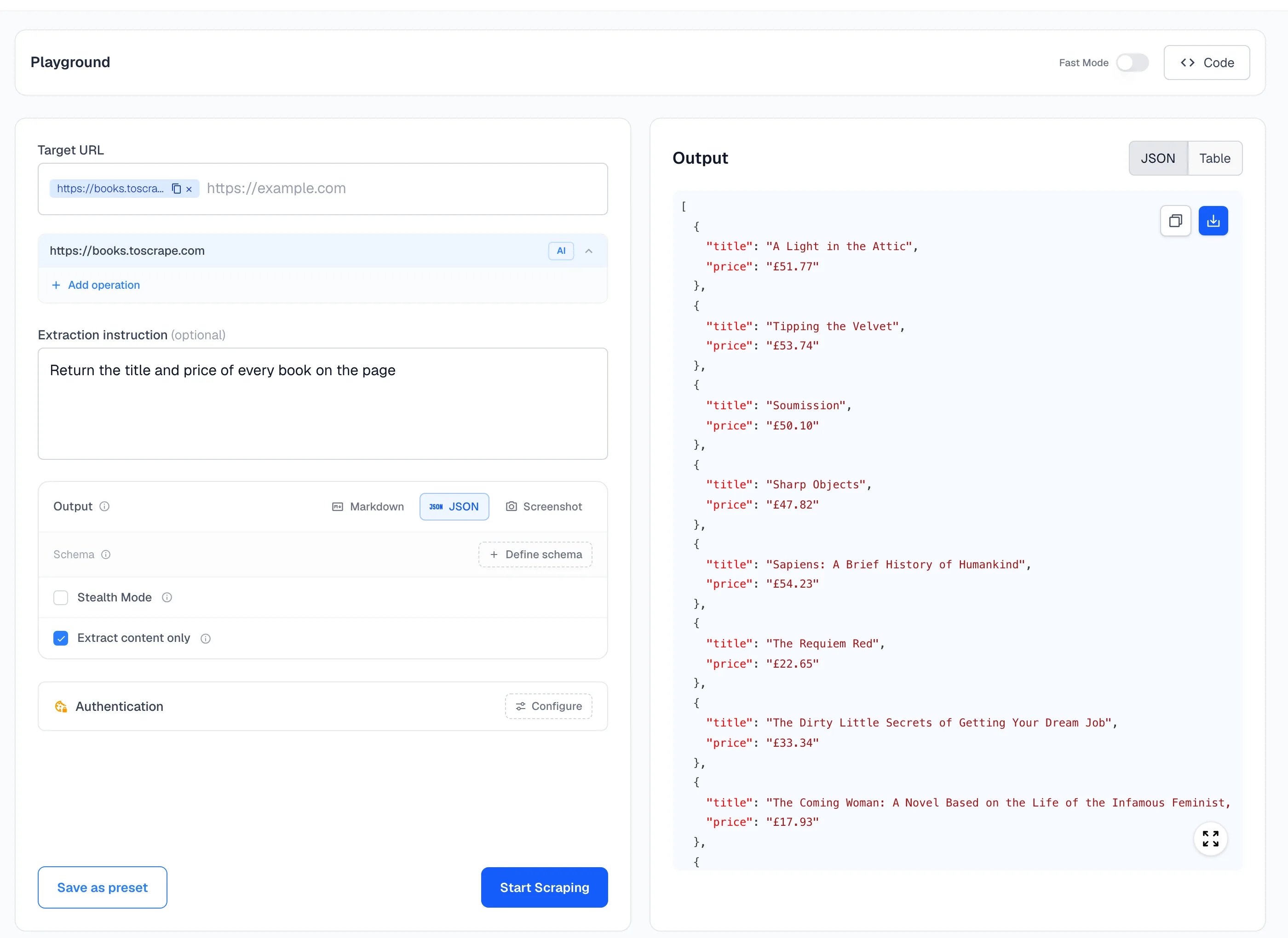
When the result isn’t what you expected
contentis empty or{}. The data may load after the page opens. Add ascrollorwaitaction, or take a screenshot to see what Spidra saw.- A field is
null. It isn’t in the page’s text. Check the page, then reword the prompt or the field. - The job failed.
errorsays why. You weren’t charged. - The site blocks you. Turn on Stealth Mode, and try a country where the site is popular.
Next
Batch scrape
Up to 50 URLs, one result each.
Structured output
Schemas for exact fields and types.
Browser actions
Click, scroll and loop before reading.
API reference
Every field and response.