> ## Documentation Index
> Fetch the complete documentation index at: https://docs.spidra.io/llms.txt
> Use this file to discover all available pages before exploring further.
# Webhook
> Push Spidra scrape results to any webhook URL. Connect a preset, set a schedule, and receive structured JSON in your own endpoint automatically.
This guide walks you through integrating your saved preset with a webhook endpoint using [Spidra](https://spidra.io). **Webhooks** are powerful for connecting your scraping workflows with other services like automation platforms, custom apps, or notification tools.
Follow the steps below to quickly set up and test a webhook integration.
***
## Step 1: Open the Integrations Tab
Go to the **Integrations** tab in the Spidra dashboard and click the **Add integration** button.
 ***
### Step 2: Choose Integration Type
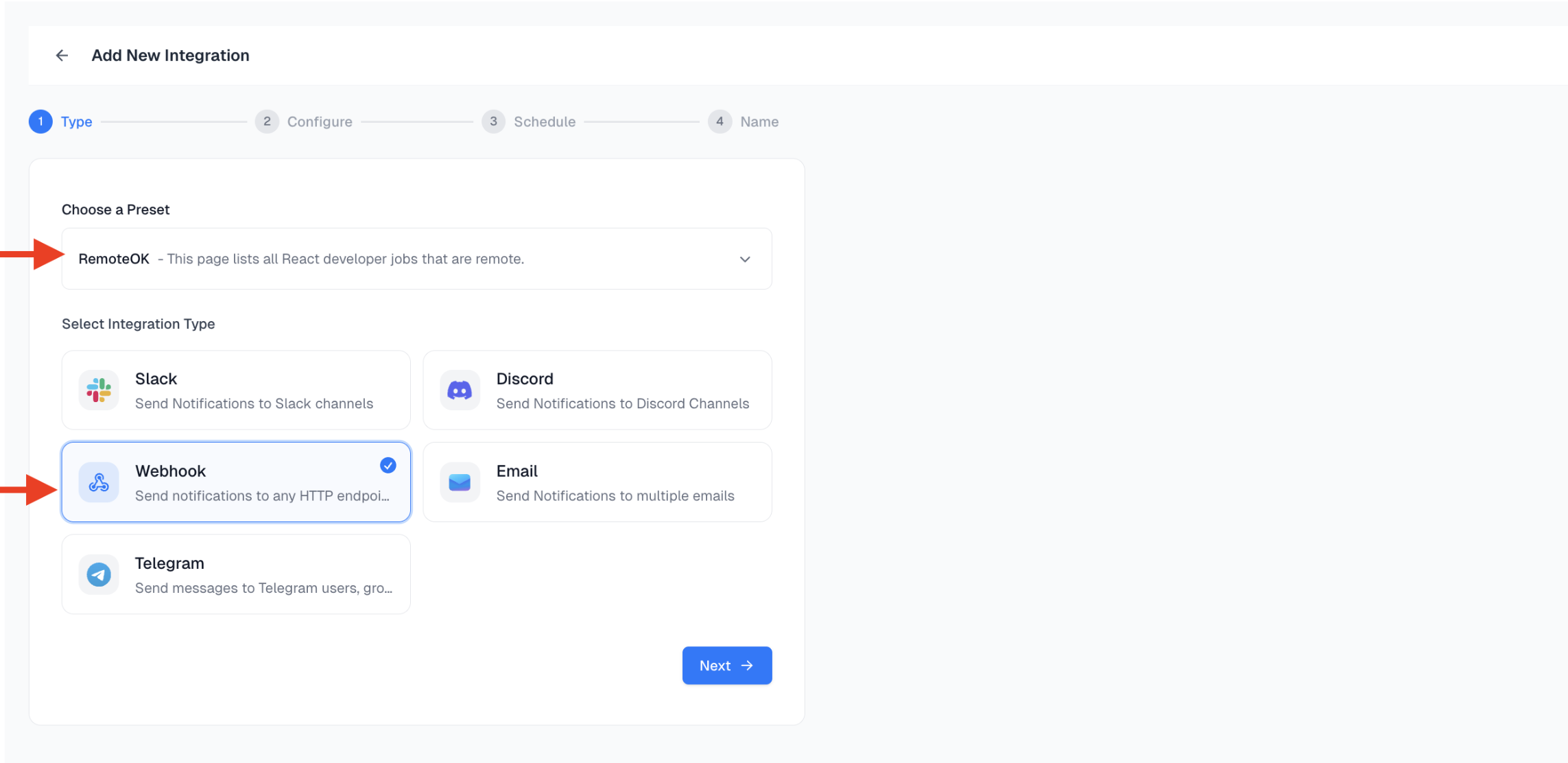
From the preset dropdown, select the preset you want to connect. Then, choose **Webhook** as your destination and click **Next** to continue.
***
### Step 2: Choose Integration Type
From the preset dropdown, select the preset you want to connect. Then, choose **Webhook** as your destination and click **Next** to continue.
 ***
## Step 3: Configure Webhook Endpoint
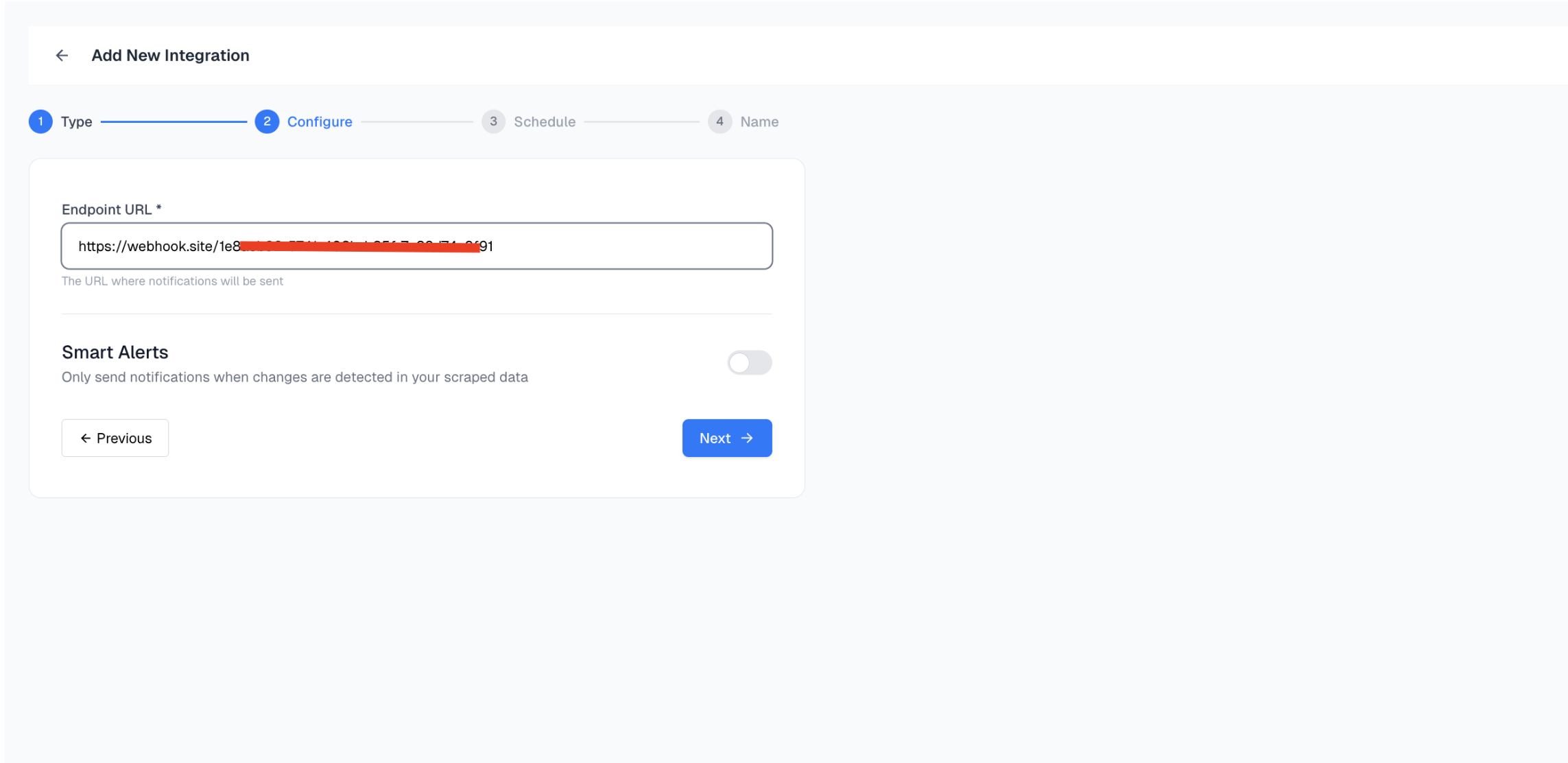
Paste your **Webhook Endpoint URL** into the configuration field. This is where Spidra will send the scraped data.
We recommend using [Webhook.site](https://webhook.site) for testing purposes. It instantly provides you with a unique temporary URL that displays incoming requests in real time.
### How to Get a Test Webhook URL:
1. Open [https://webhook.site](https://webhook.site)
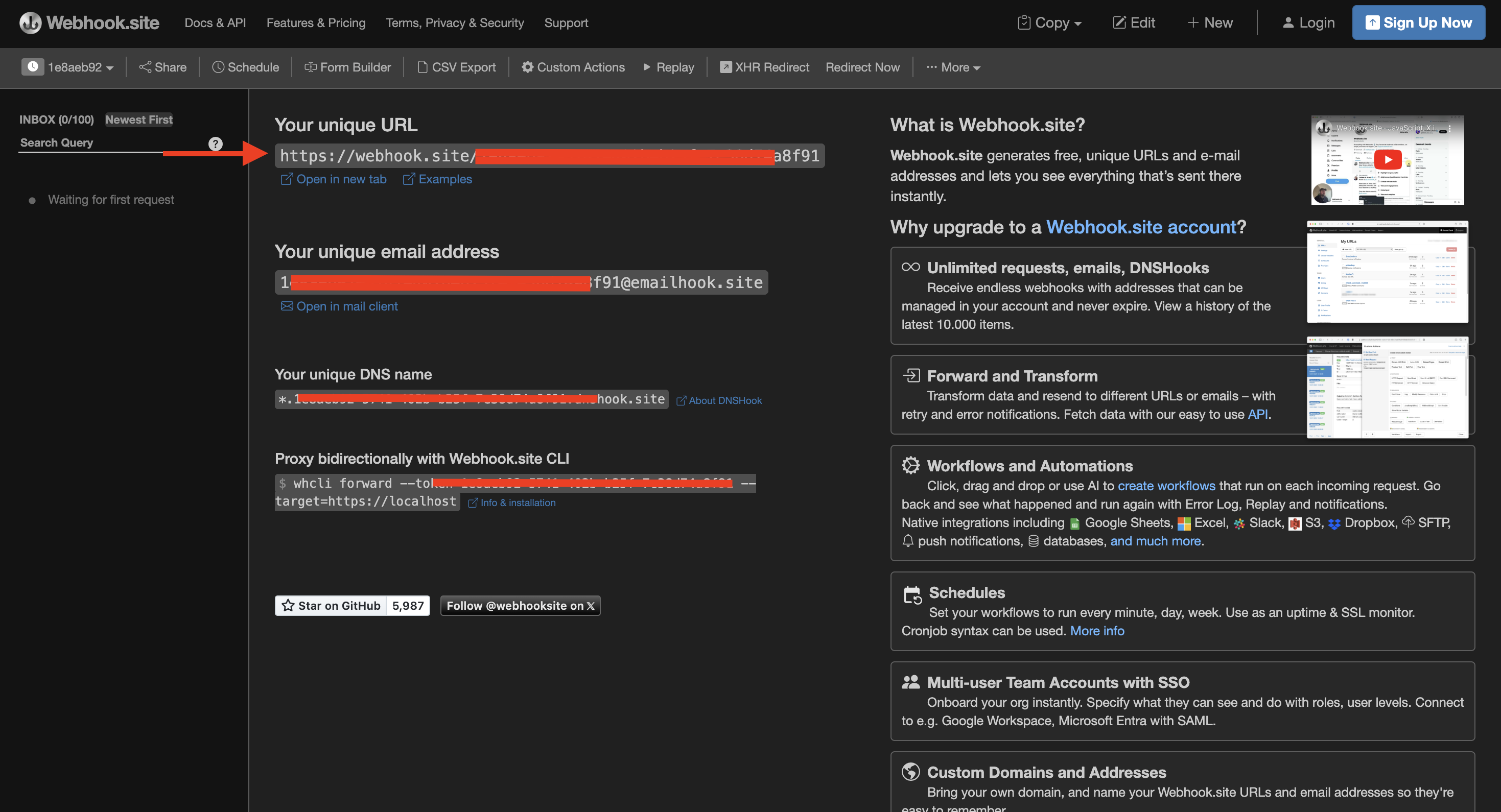
2. Copy the **unique URL** provided at the top of the page.
***
## Step 3: Configure Webhook Endpoint
Paste your **Webhook Endpoint URL** into the configuration field. This is where Spidra will send the scraped data.
We recommend using [Webhook.site](https://webhook.site) for testing purposes. It instantly provides you with a unique temporary URL that displays incoming requests in real time.
### How to Get a Test Webhook URL:
1. Open [https://webhook.site](https://webhook.site)
2. Copy the **unique URL** provided at the top of the page.
 3. Paste this URL into Spidra's Webhook input field.
 ***
## Step 4: Schedule the Integration
Set how often you want this webhook to run:
* **Daily**
* **Weekly**
* **Monthly**
Specify the **exact time** you want the integration to run and set the **timezone** (default is UTC). Use a valid [IANA timezone](https://en.wikipedia.org/wiki/List_of_tz_database_time_zones) string like `Africa/Lagos` or `America/New_York`.
***
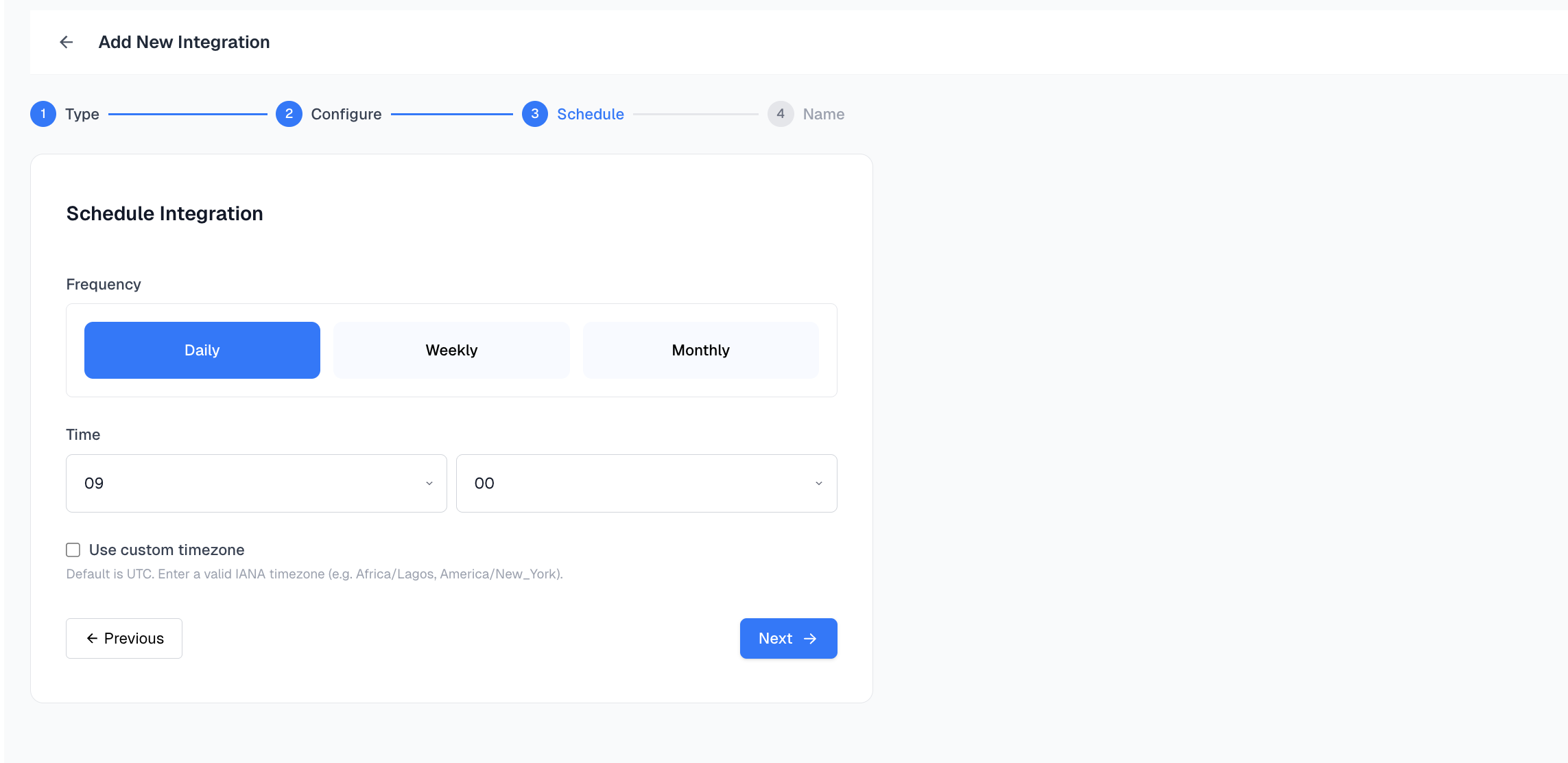
## Step 4: Schedule the Integration
Set how often you want this webhook to run:
* **Daily**
* **Weekly**
* **Monthly**
Specify the **exact time** you want the integration to run and set the **timezone** (default is UTC). Use a valid [IANA timezone](https://en.wikipedia.org/wiki/List_of_tz_database_time_zones) string like `Africa/Lagos` or `America/New_York`.
 ***
### Step 5: Name Your Integration
Give your integration a descriptive name, this helps you identify it later in your integration list.
***
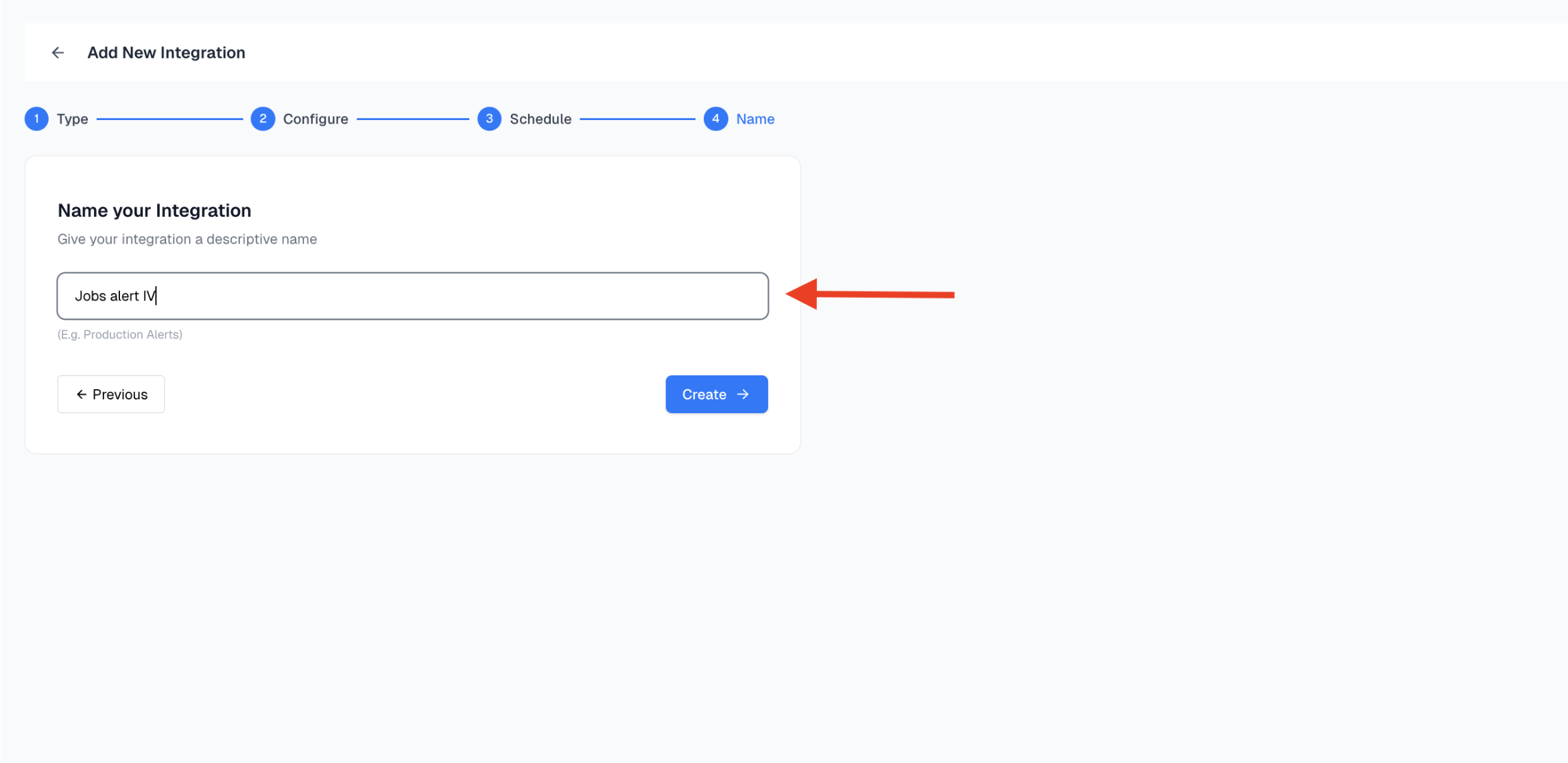
### Step 5: Name Your Integration
Give your integration a descriptive name, this helps you identify it later in your integration list.
 ***
## Step 6: View Incoming Payload on Webhook.site
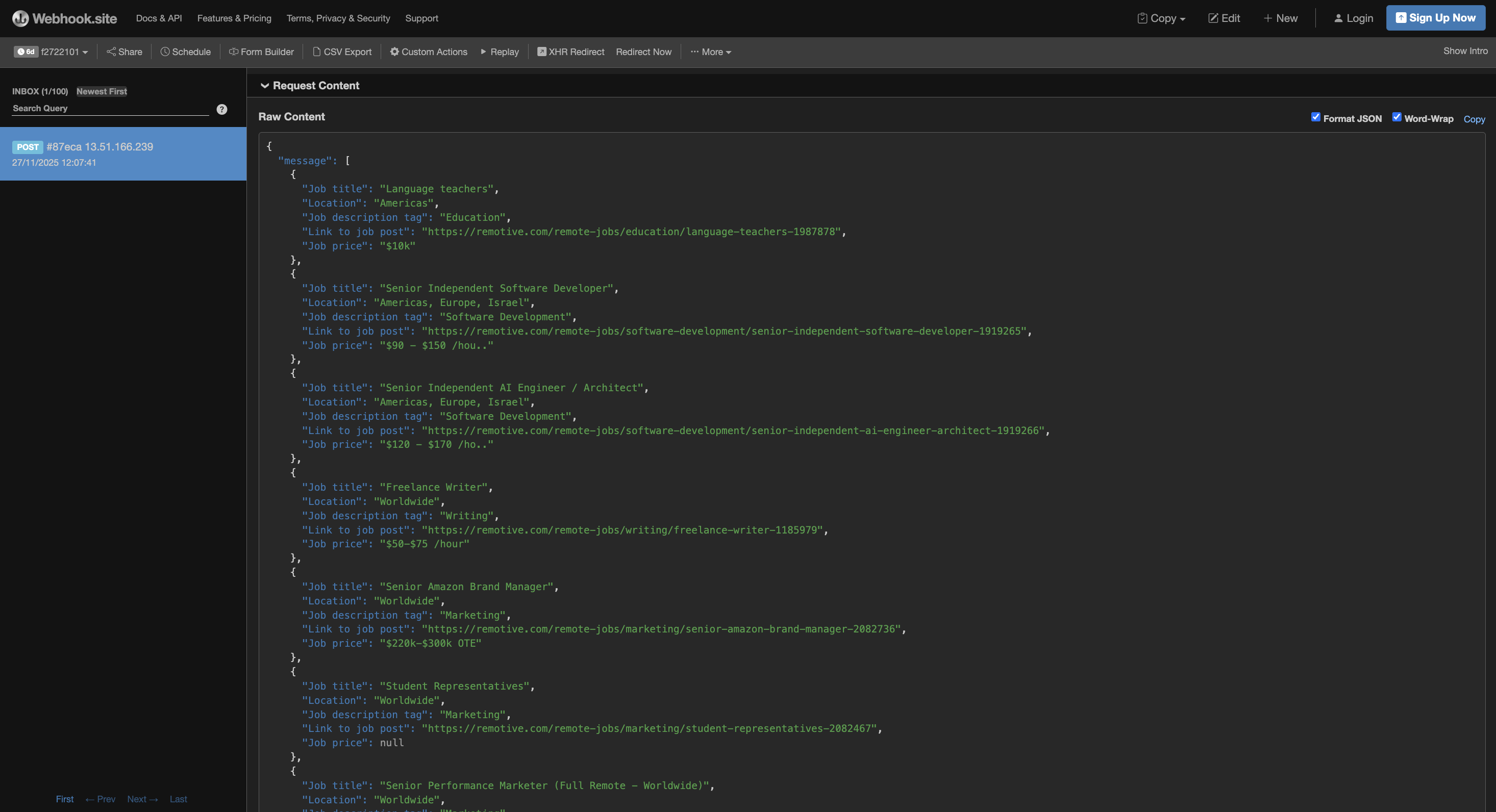
Once your scheduled time arrives, navigate to **Webhook.site**. You’ll see the incoming request appear on the page with the full payload.
This confirms your integration is working!
***
## Step 6: View Incoming Payload on Webhook.site
Once your scheduled time arrives, navigate to **Webhook.site**. You’ll see the incoming request appear on the page with the full payload.
This confirms your integration is working!