> ## Documentation Index
> Fetch the complete documentation index at: https://docs.spidra.io/llms.txt
> Use this file to discover all available pages before exploring further.
# Email
> Deliver Spidra scrape results to any email address. Connect a preset, set a schedule, and receive extracted data automatically.
This guide shows you how to integrate your **Spidra preset** with **Email**, so that your scraping results are automatically delivered to one or more inboxes at a scheduled time.
Follow these steps to get started — setup takes just a few minutes.
***
## Step 1: Open the Integrations Tab
Navigate to the **Integrations** tab on your Spidra dashboard and click the **Add Integration** button to begin.
 ## Step 2: Select Your Preset and Choose Email
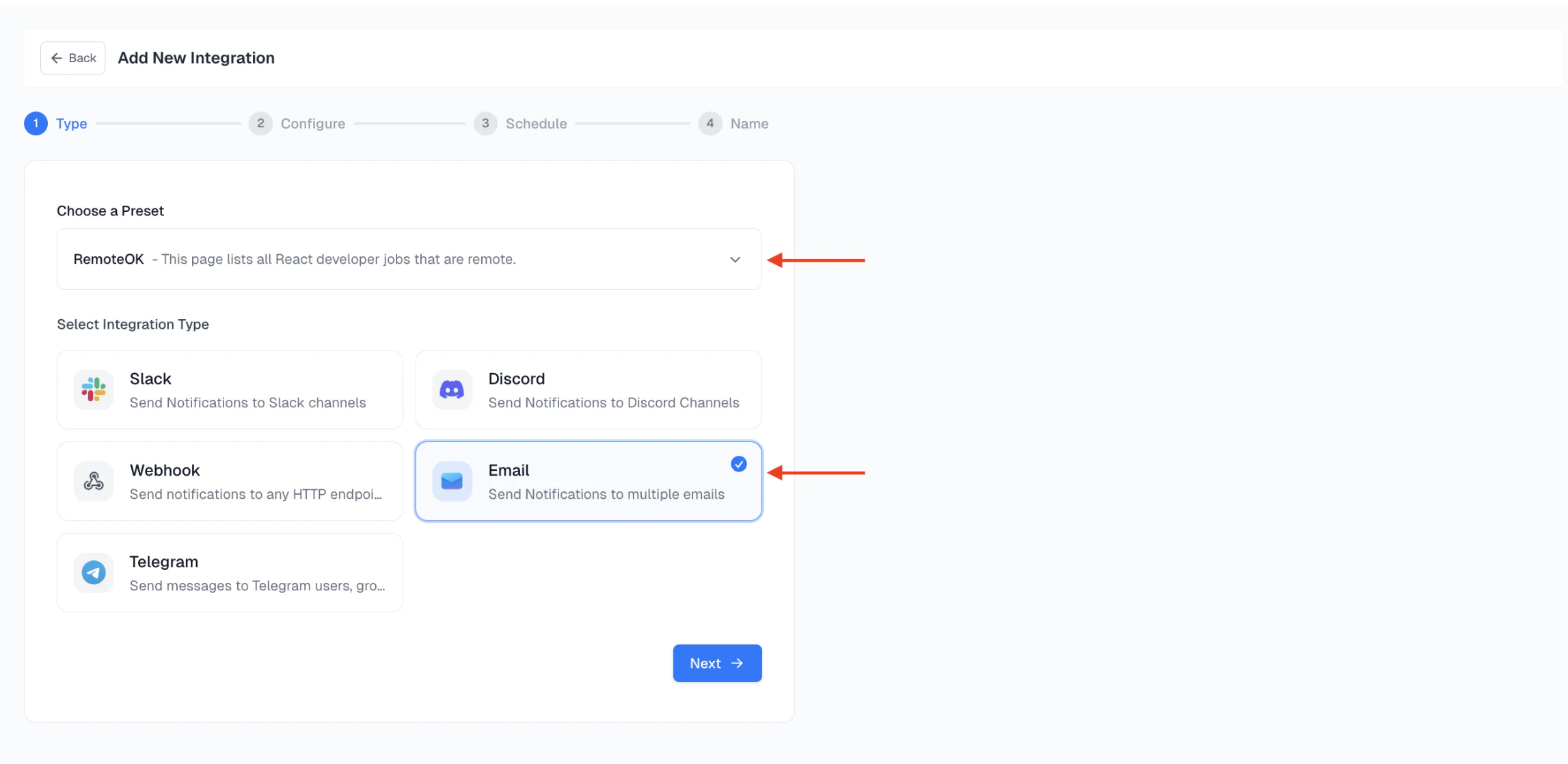
In the **Type** modal, select the **Preset** you’d like to use from the dropdown, then proceed to choose **Email** as your destination.
Click **Next** to proceed.
## Step 2: Select Your Preset and Choose Email
In the **Type** modal, select the **Preset** you’d like to use from the dropdown, then proceed to choose **Email** as your destination.
Click **Next** to proceed.
 ## Step 3: Configure Email Settings
In the configuration screen:
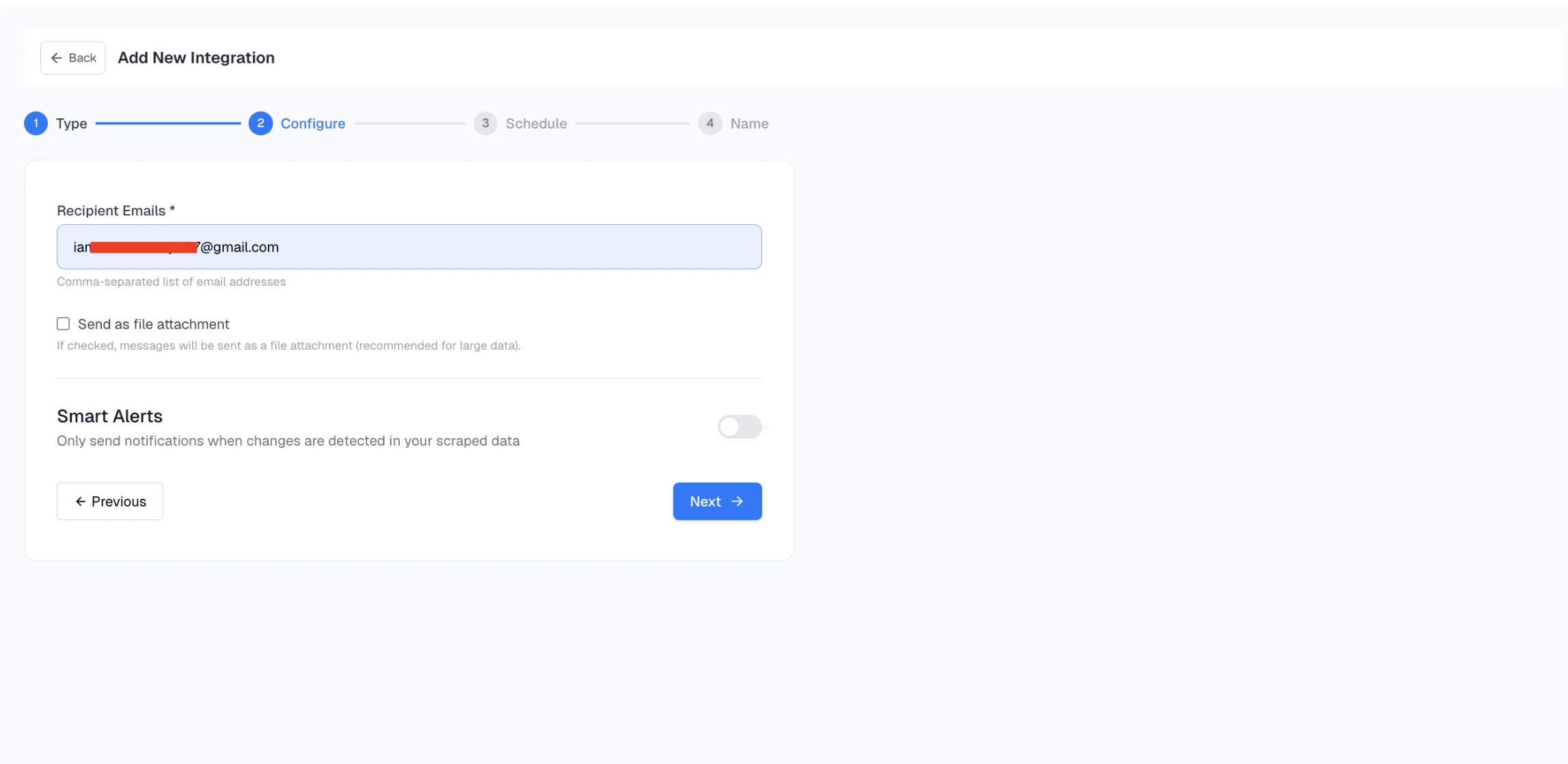
* Enter the recipient email address.
* To send to multiple recipients, use a comma-separated list like this: `team@example.com, manager@example.com, data@yourcompany.com`.
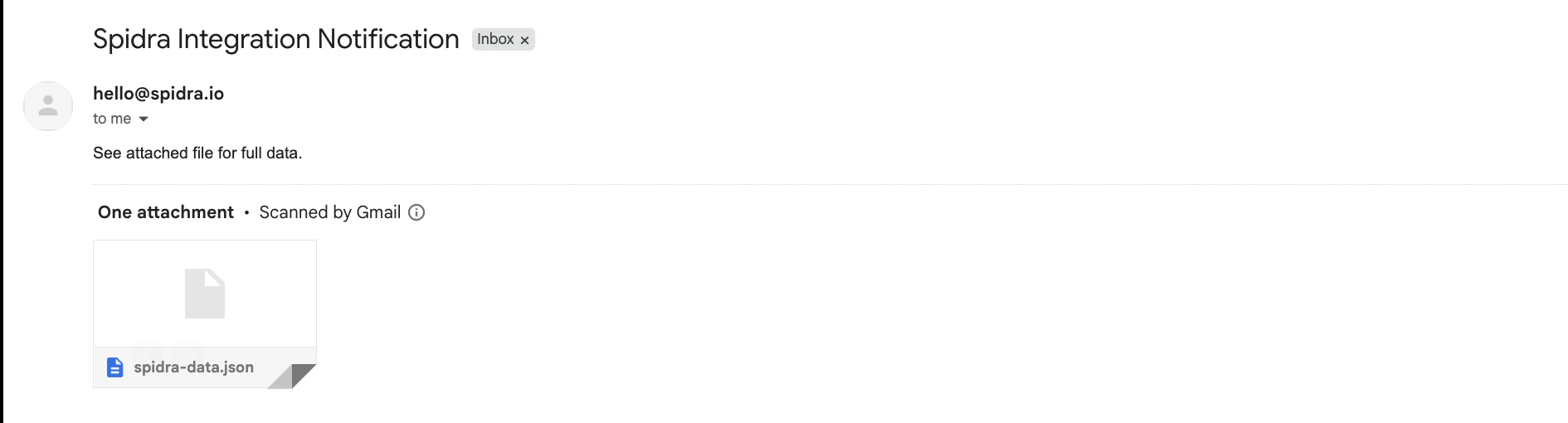
**Optionally**: check the **Send as file attachment** box. This is recommended for large data or structured results such as CSV, Markdown, or JSON.
If this option is enabled, the scrape result will be sent as a downloadable file (e.g., .csv, .md). Otherwise, the content will appear inline in the email body.
## Step 3: Configure Email Settings
In the configuration screen:
* Enter the recipient email address.
* To send to multiple recipients, use a comma-separated list like this: `team@example.com, manager@example.com, data@yourcompany.com`.
**Optionally**: check the **Send as file attachment** box. This is recommended for large data or structured results such as CSV, Markdown, or JSON.
If this option is enabled, the scrape result will be sent as a downloadable file (e.g., .csv, .md). Otherwise, the content will appear inline in the email body.
 ## Step 4: Schedule the Integration
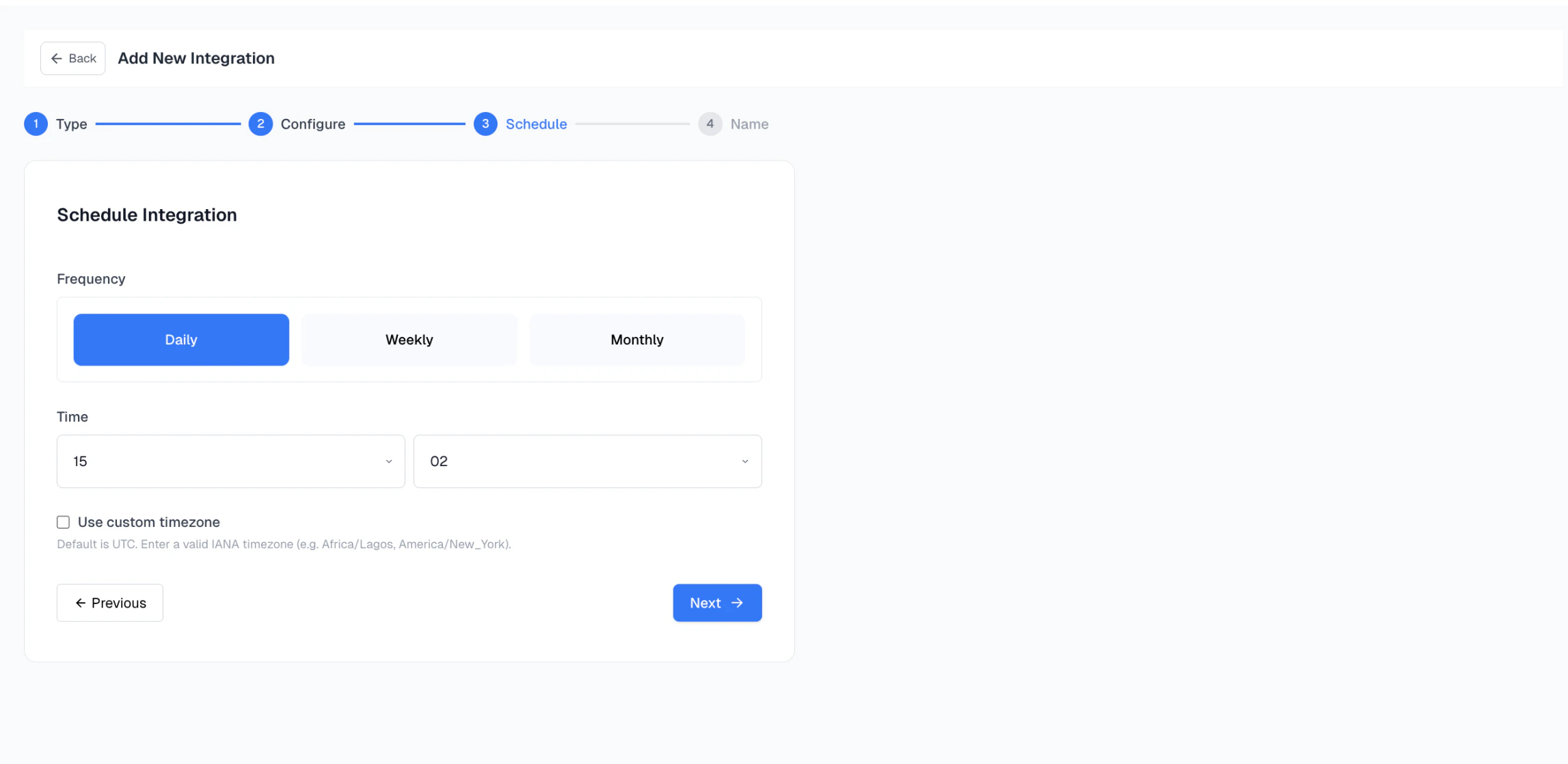
Set how often the scrape should run: **Daily, Weekly, Monthly**.
Then, choose the time of day and set the timezone. By default, Spidra uses **UTC**. If needed, you can use a valid [IANA timezone](https://en.wikipedia.org/wiki/List_of_tz_database_time_zones) timezone, such as:
* Africa/Lagos
* America/New\_York
* Asia/Tokyo
## Step 4: Schedule the Integration
Set how often the scrape should run: **Daily, Weekly, Monthly**.
Then, choose the time of day and set the timezone. By default, Spidra uses **UTC**. If needed, you can use a valid [IANA timezone](https://en.wikipedia.org/wiki/List_of_tz_database_time_zones) timezone, such as:
* Africa/Lagos
* America/New\_York
* Asia/Tokyo
 Click **Next** to continue.
## Step 5: Name Your Integration
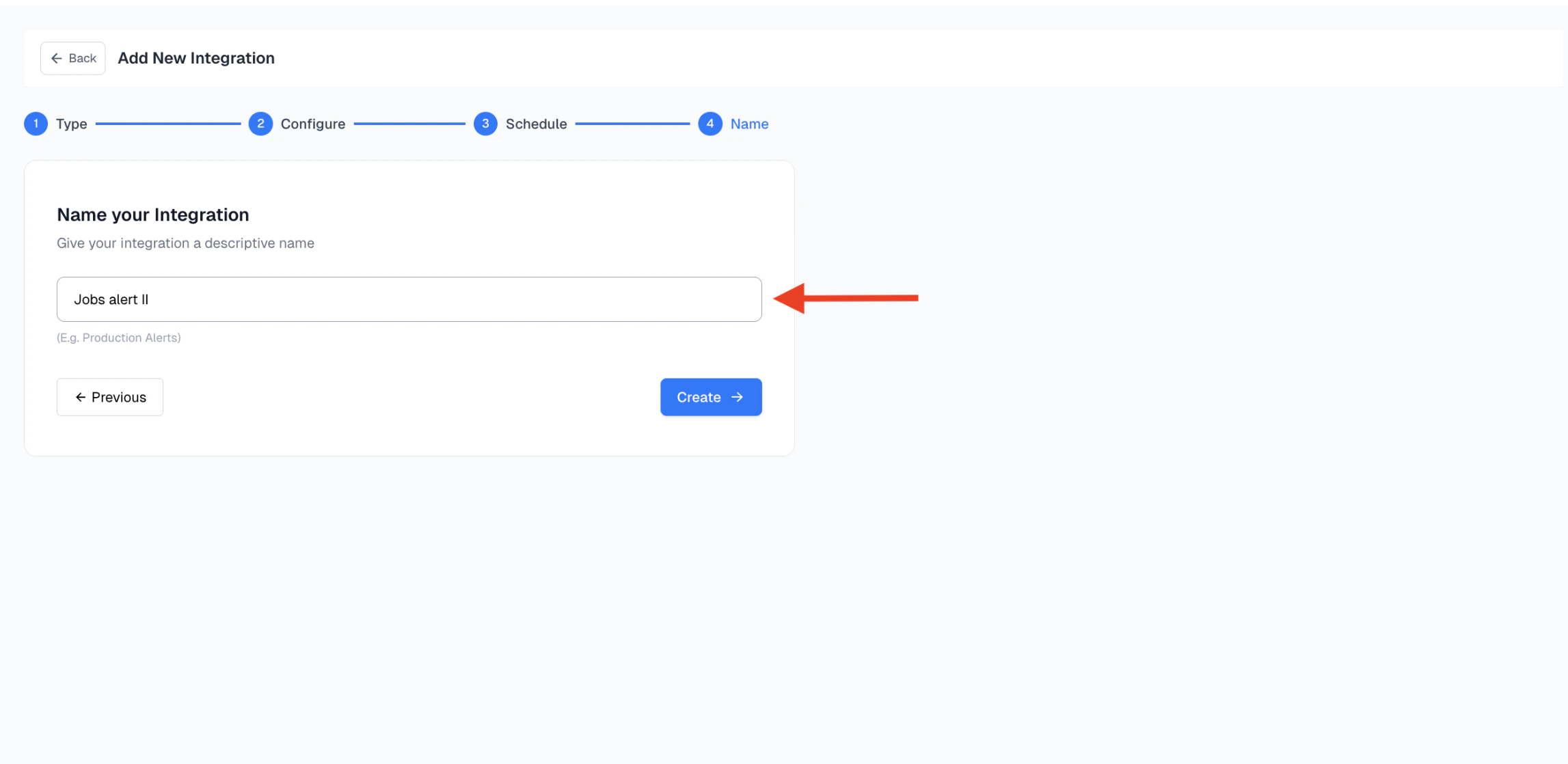
Give your integration a meaningful name, this helps you track it later. Examples: "*Jobs alert II*"
Click **Next** to continue.
## Step 5: Name Your Integration
Give your integration a meaningful name, this helps you track it later. Examples: "*Jobs alert II*"
 ## Step 6: Check Your Inbox for Results
Once your integration runs at the scheduled time, the output will be delivered to your inbox.
## Step 6: Check Your Inbox for Results
Once your integration runs at the scheduled time, the output will be delivered to your inbox.
 Important: On your first integration, some email services may flag the message as spam. If that happens, simply mark it as "**Not Spam**" to ensure future results land in your inbox.