> ## Documentation Index
> Fetch the complete documentation index at: https://docs.spidra.io/llms.txt
> Use this file to discover all available pages before exploring further.
# Discord
> Easily connect your Spidra preset to Discord and start receiving automated scrape results in your server channels.
This guide walks you through how to connect a [Spidra](https://spidra.io) preset\*\* to [Discord](https://discord.com/) in just a few simple steps. Once integrated, Spidra will send scraped data directly to a specified Discord channel at your chosen schedule.
Let’s get started.
***
## Step 1: Open the Integrations Tab
First, navigate to the **Integrations** tab in your Spidra dashboard. Click the **Add Integration** button to begin.
 ## Step 2: Select Preset and Choose Discord
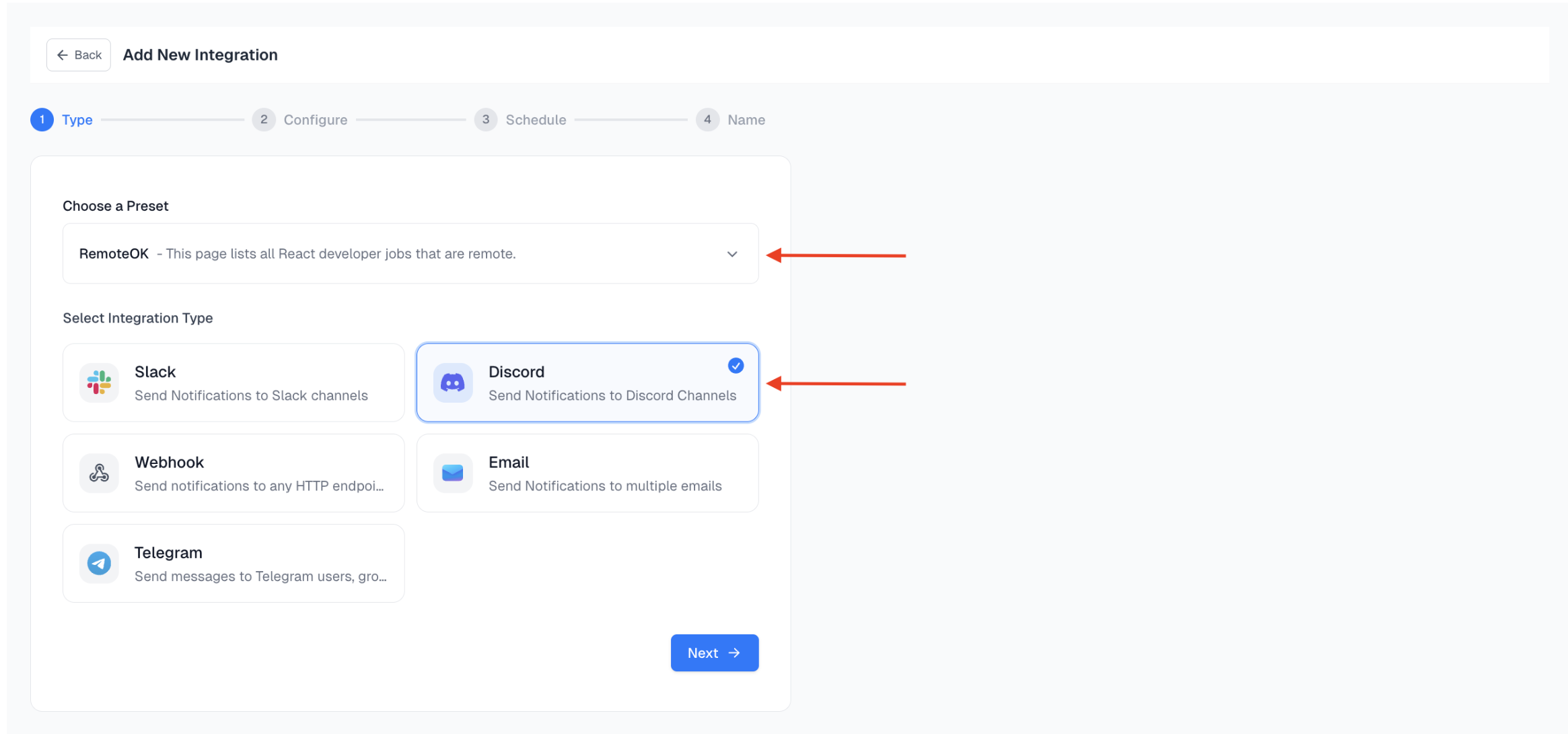
In the **Type** modal that appears, use the dropdown to select the preset you want to connect. Choose Discord as your destination.
Click **Next** to proceed.
## Step 2: Select Preset and Choose Discord
In the **Type** modal that appears, use the dropdown to select the preset you want to connect. Choose Discord as your destination.
Click **Next** to proceed.
 ## Step 3: Configure Discord
To configure the integration, you’ll need a **Discord Webhook URL**. To get your Webhook URL follow these instructions :
* Open your Discord server.
* Go to the channel where you want messages to be posted.
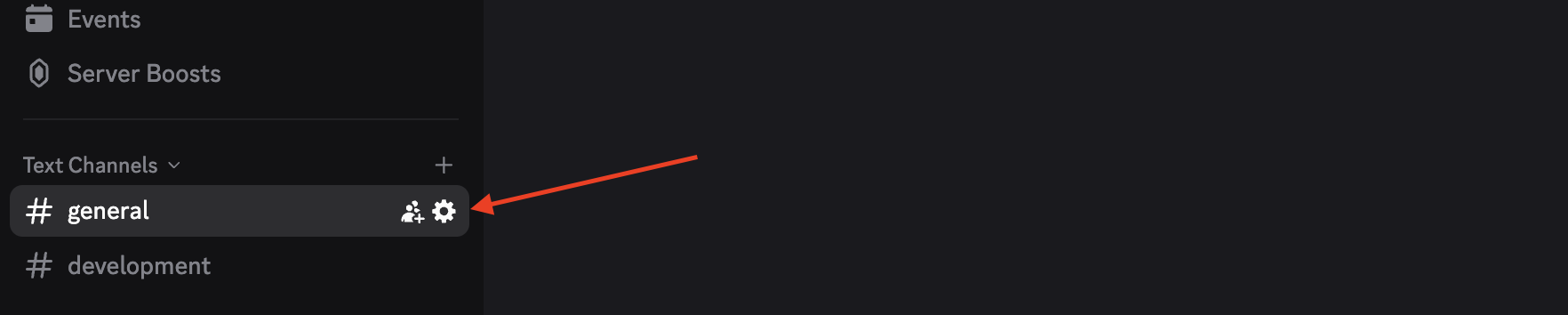
* Click the gear icon (⚙️) next to the channel name.
## Step 3: Configure Discord
To configure the integration, you’ll need a **Discord Webhook URL**. To get your Webhook URL follow these instructions :
* Open your Discord server.
* Go to the channel where you want messages to be posted.
* Click the gear icon (⚙️) next to the channel name.
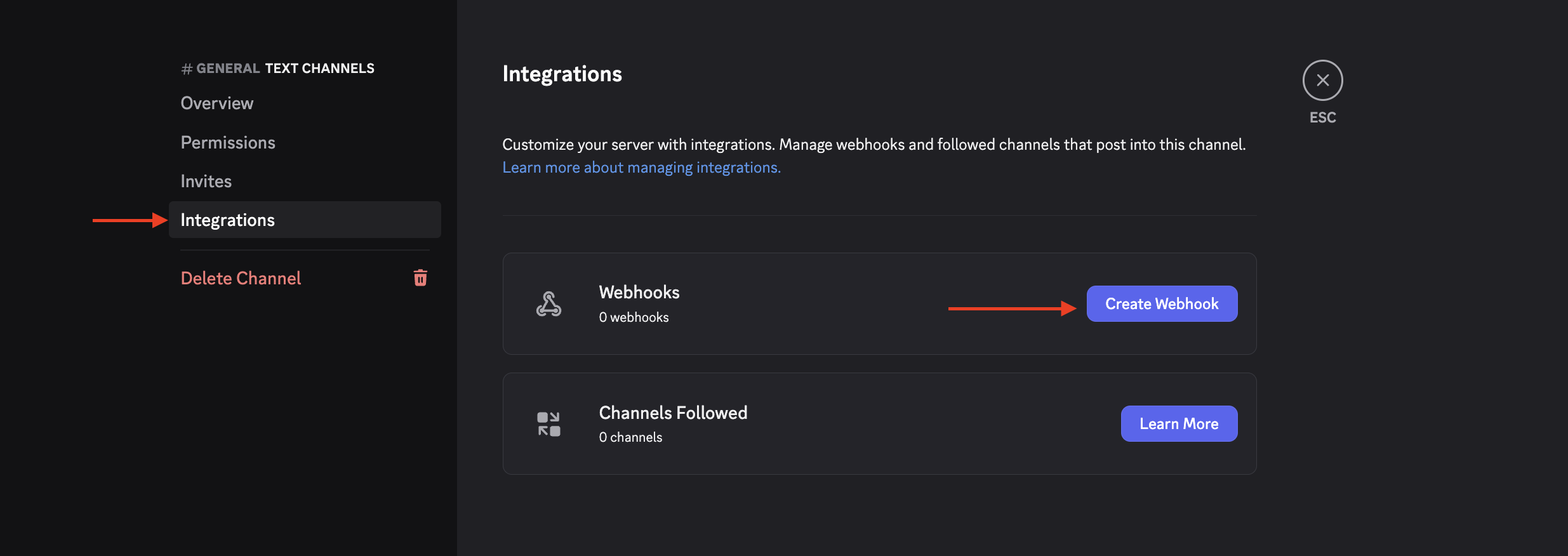
 * In the sidebar, go to Integrations → Webhooks.
* Click Create Webhook.
* In the sidebar, go to Integrations → Webhooks.
* Click Create Webhook.
 * Give the webhook a name (e.g., "Spidra Alerts").
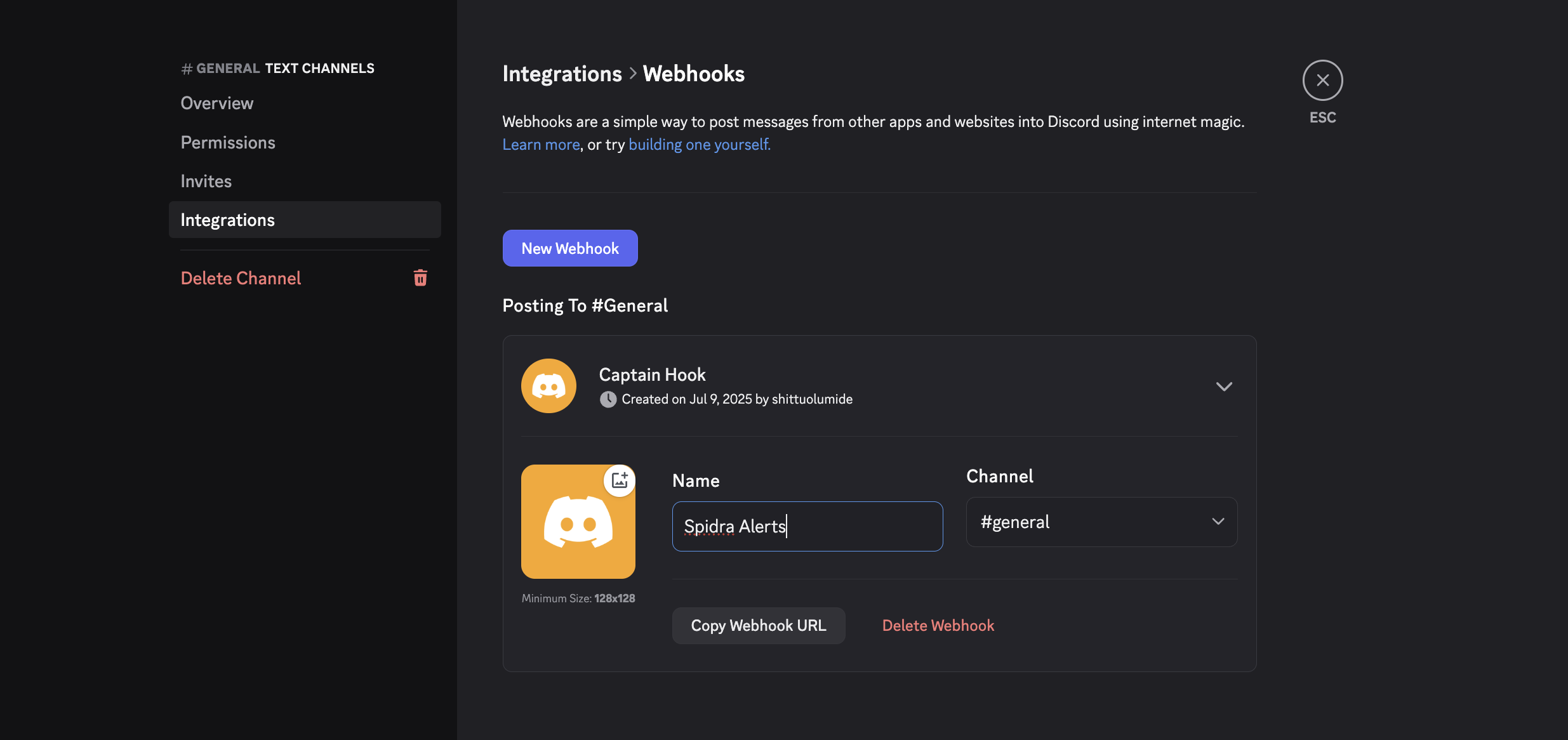 * Click Copy Webhook URL.
* Click Save Changes.
Paste this URL back into the Spidra configuration screen.
* Click Copy Webhook URL.
* Click Save Changes.
Paste this URL back into the Spidra configuration screen.
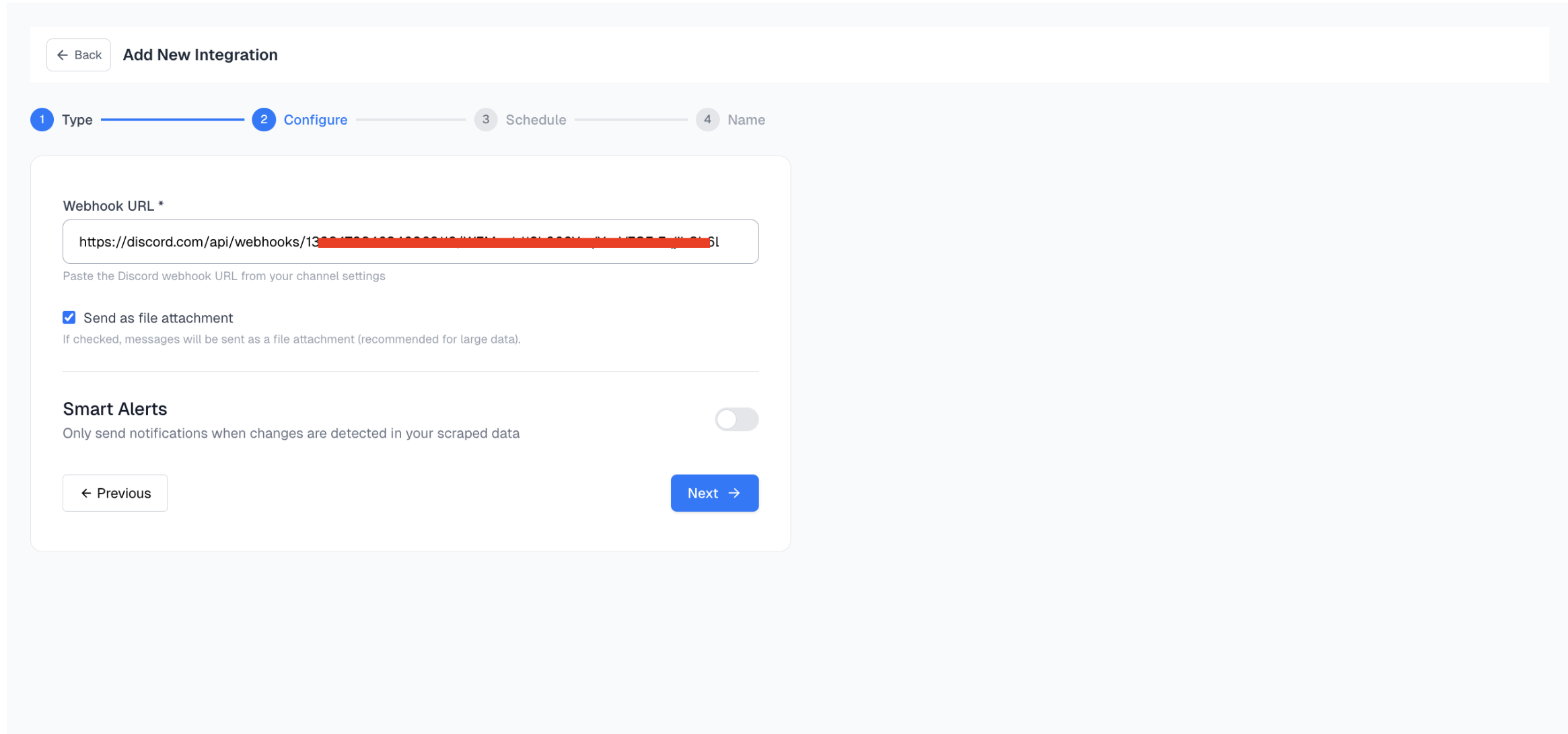 ### Optional: Send as File Attachment
You can choose to send your scrape result as a file attachment instead of plain text. This is especially useful for:
* Large datasets
* Preserving formatting (e.g., CSV/Markdown)
To enable this, make sure:
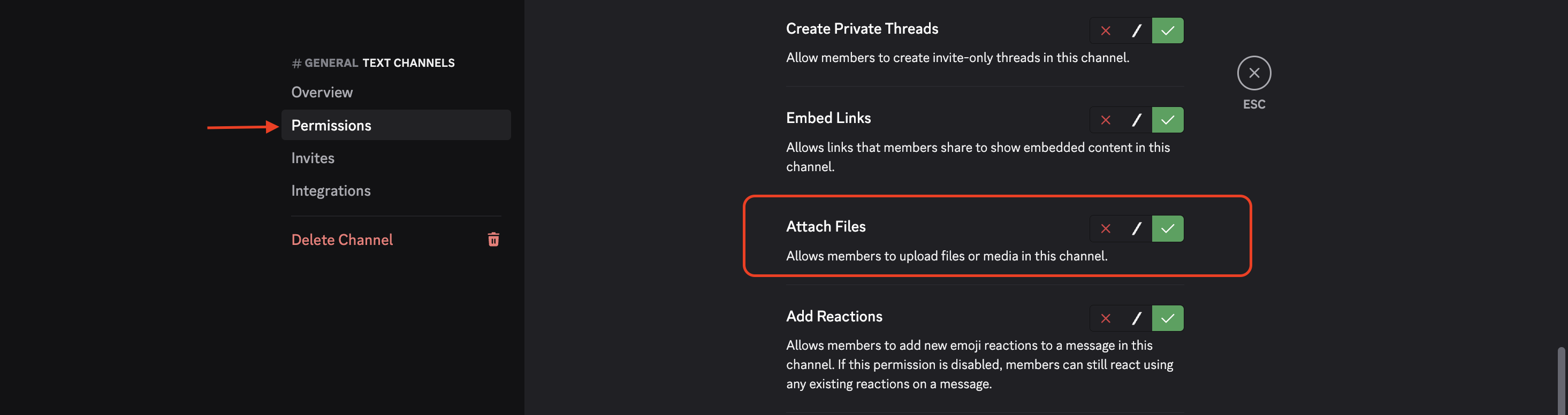
* You check the "**Attach files**” option to allow your Discord channel permission to upload files.
### Optional: Send as File Attachment
You can choose to send your scrape result as a file attachment instead of plain text. This is especially useful for:
* Large datasets
* Preserving formatting (e.g., CSV/Markdown)
To enable this, make sure:
* You check the "**Attach files**” option to allow your Discord channel permission to upload files.
 Click **Next** to continue.
## Step 4: Set Your Schedule
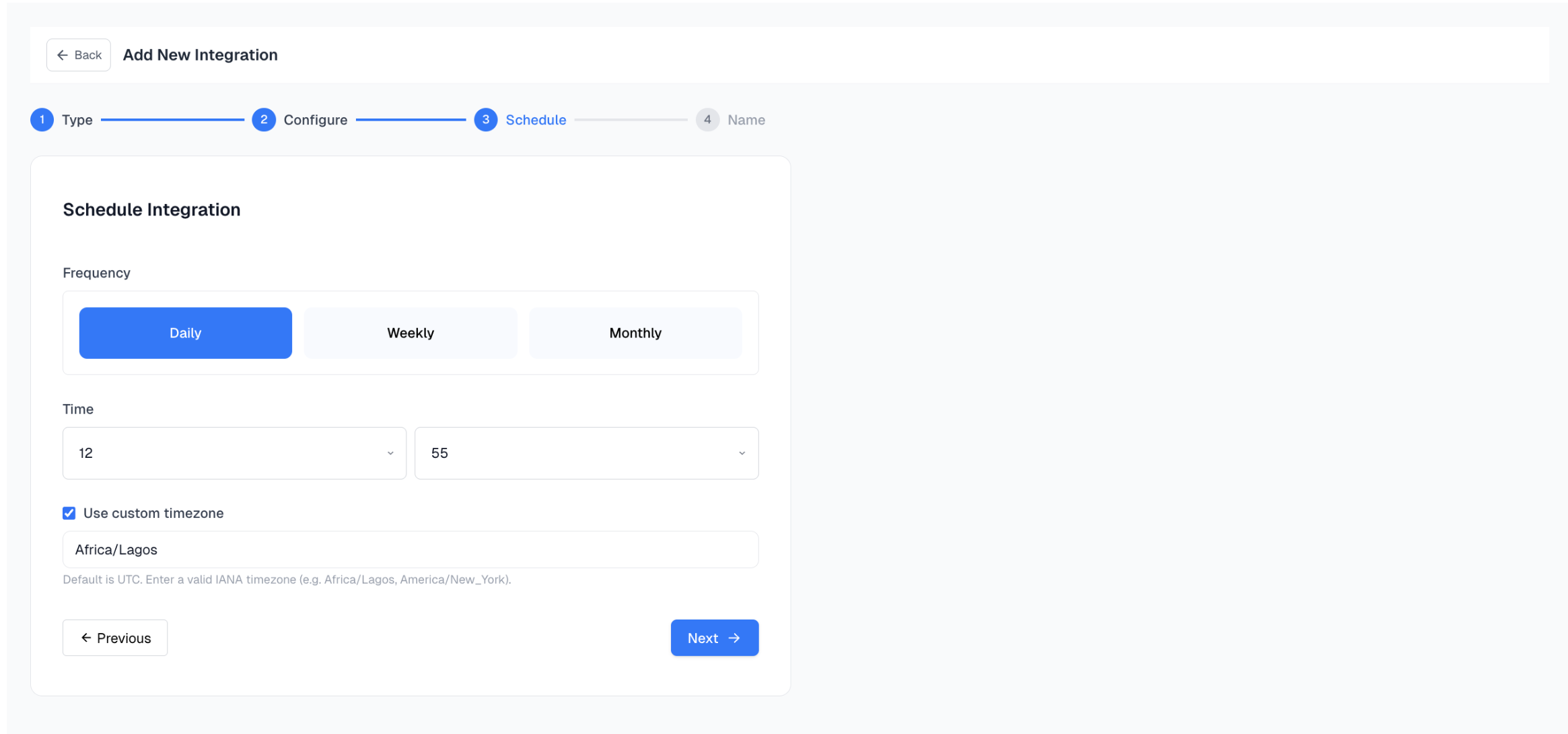
Define how often Spidra should send data to Discord.
* Daily
* Weekly
* Monthly
Then set the time of day the integration should run.
Timezone: Enter a valid [IANA timezone](https://en.wikipedia.org/wiki/List_of_tz_database_time_zones) timezone such as: **Africa/Lagos**, **America/New\_York**, **Europe/London**, etc.
Default timezone is **UTC** if not specified.
Click **Next** to continue.
## Step 4: Set Your Schedule
Define how often Spidra should send data to Discord.
* Daily
* Weekly
* Monthly
Then set the time of day the integration should run.
Timezone: Enter a valid [IANA timezone](https://en.wikipedia.org/wiki/List_of_tz_database_time_zones) timezone such as: **Africa/Lagos**, **America/New\_York**, **Europe/London**, etc.
Default timezone is **UTC** if not specified.
 Click **Next** to proceed.
## Step 5: Name Your Integration
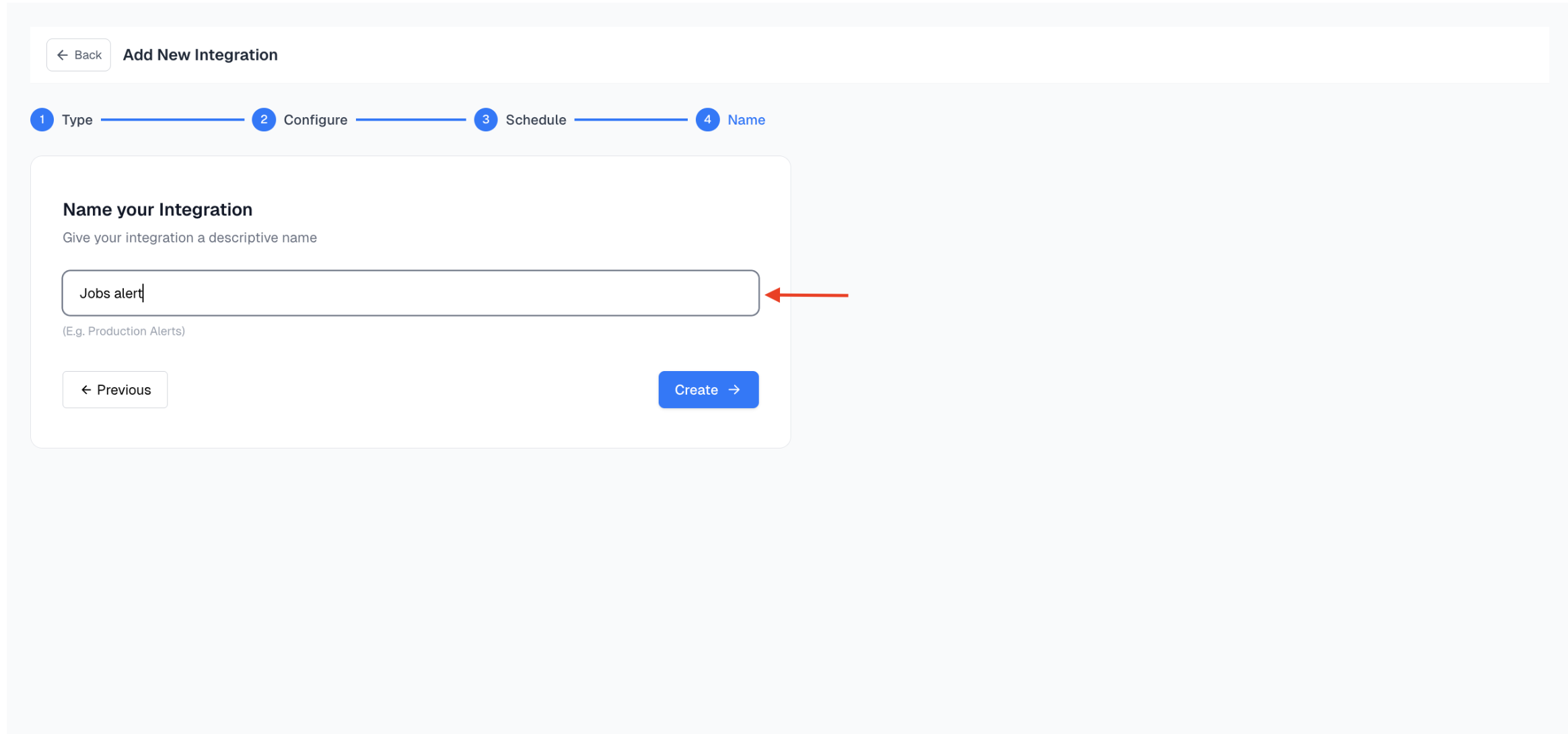
Give your integration a descriptive name e.g"*React Job Alerts*". This helps you easily identify it in your integrations dashboard.
Click **Next** to proceed.
## Step 5: Name Your Integration
Give your integration a descriptive name e.g"*React Job Alerts*". This helps you easily identify it in your integrations dashboard.
 ## Step 6: Receive Results in Discord
Once your scheduled time is reached, head over to the specified Discord channel, your scrape result will be posted automatically.
## Step 6: Receive Results in Discord
Once your scheduled time is reached, head over to the specified Discord channel, your scrape result will be posted automatically.
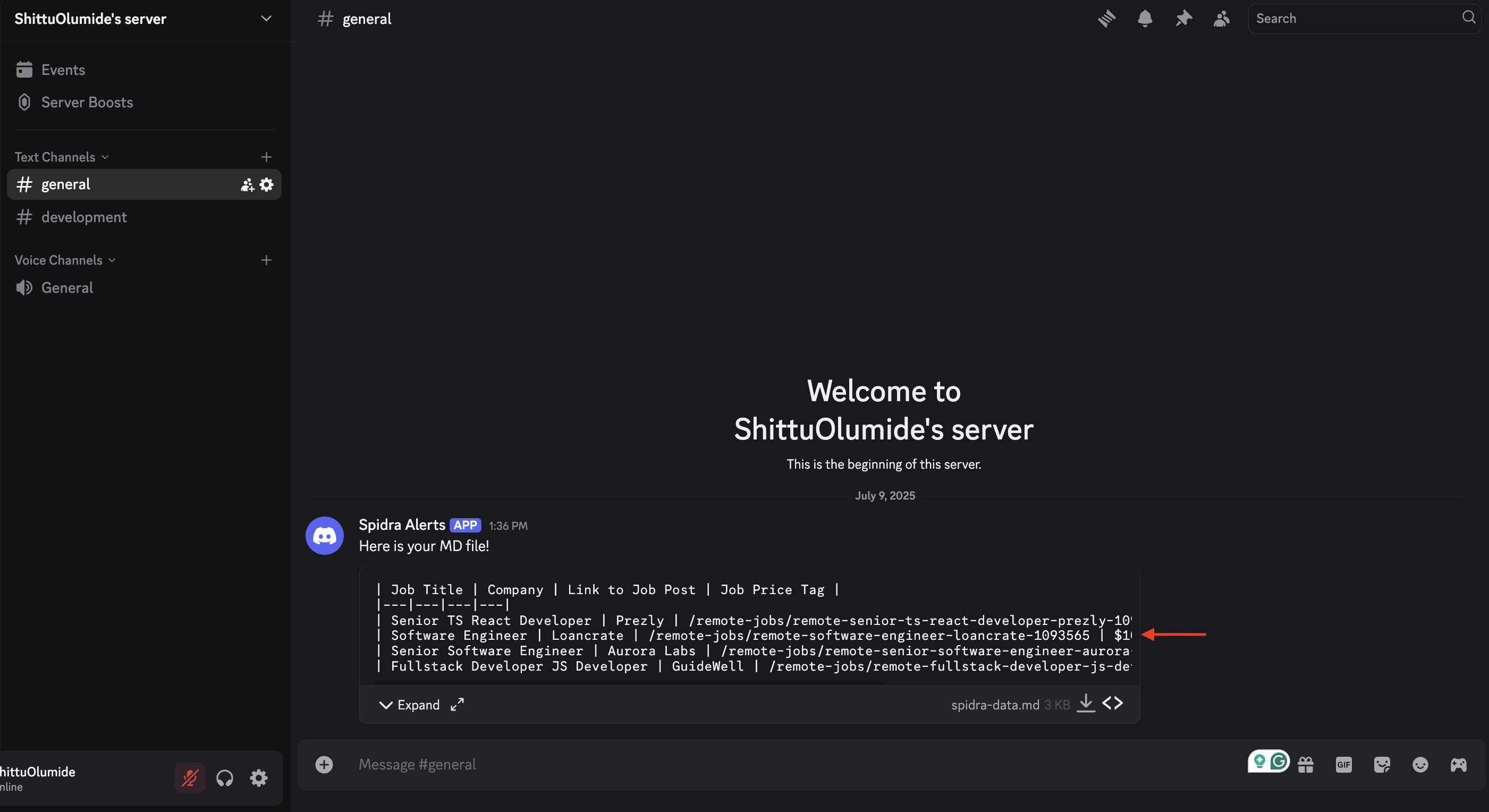 That’s it! Your Discord integration is live and running on schedule 🎉.