> ## Documentation Index
> Fetch the complete documentation index at: https://docs.spidra.io/llms.txt
> Use this file to discover all available pages before exploring further.
# Dashboard
> Learn how to navigate the Spidra dashboard, visualize usage metrics, monitor recent scrapes, and access key shortcuts.
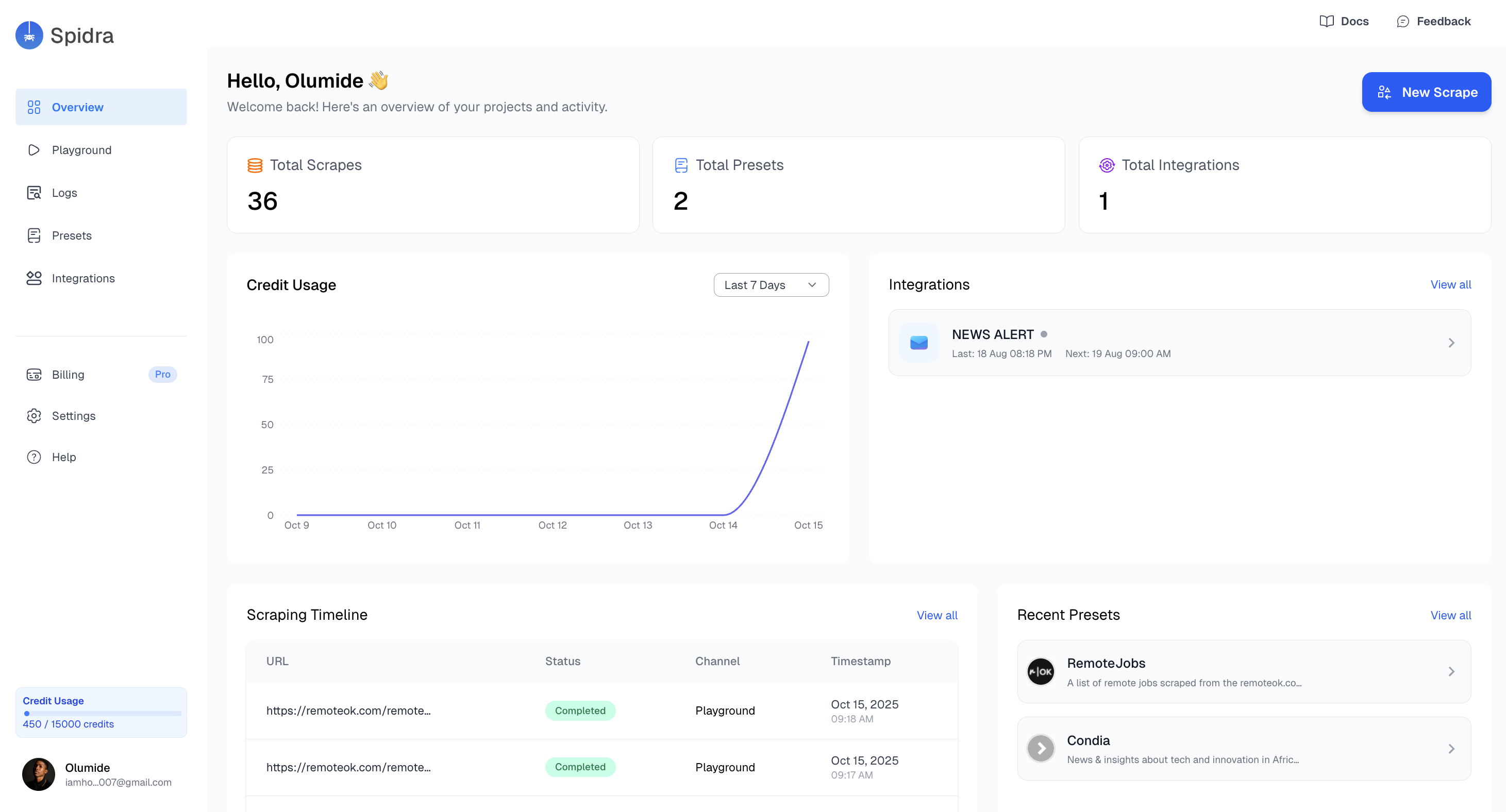
The Spidra dashboard gives you a real-time overview of your scraping activity, credit usage, recent integrations, and saved presets — **all in one place**.
It offers visibility into how your resources are being used.
 ***
## Quick Access and Summary
At the top of the dashboard, you’ll find quick stats including:
* **Total Scrapes** – Number of successful scraping jobs you've run.
* **Total Presets** – Count of saved configurations from the Playground.
* **Total Integrations** – Number of currently active integrations with third-party platforms.
***
## Quick Access and Summary
At the top of the dashboard, you’ll find quick stats including:
* **Total Scrapes** – Number of successful scraping jobs you've run.
* **Total Presets** – Count of saved configurations from the Playground.
* **Total Integrations** – Number of currently active integrations with third-party platforms.
 These stats give you a quick pulse on your account activity
## Usage Analytics
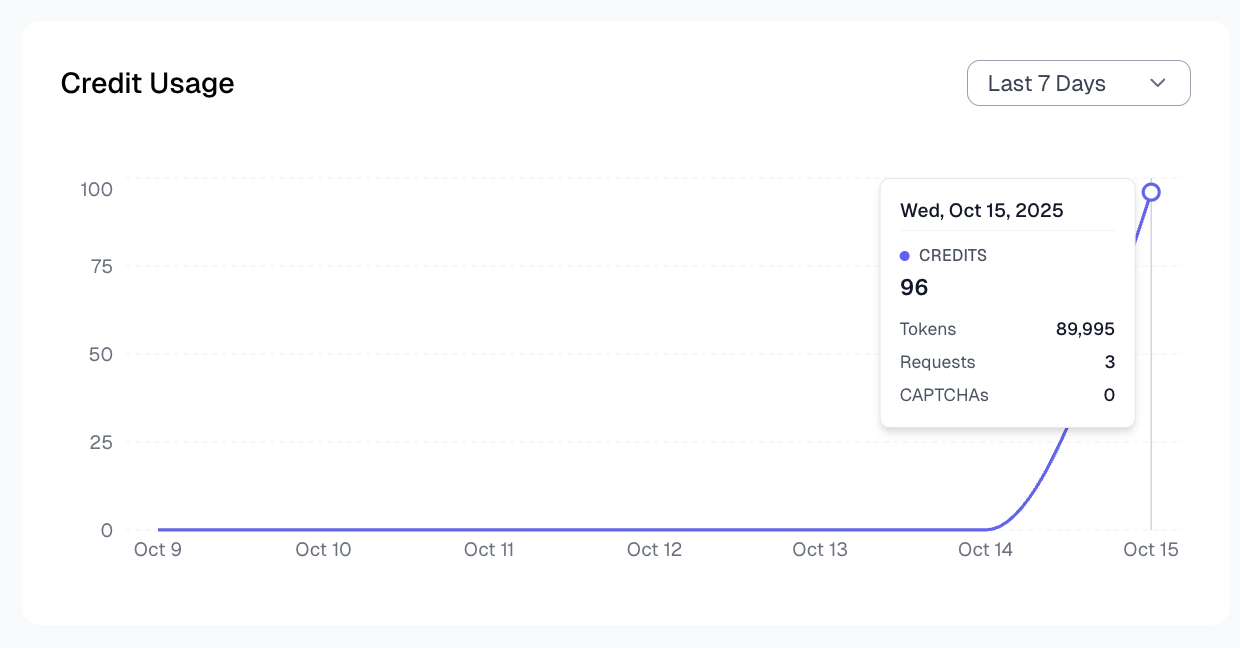
Spidra includes a built-in credit usage chart so you can monitor your consumption over time. This chart breaks down:
* **Credit Used**
* **Total Requests**
* **Tokens Used** (powered by LLM interactions)
* **CAPTCHAs Solved** (if bypass mechanisms were triggered)
These stats give you a quick pulse on your account activity
## Usage Analytics
Spidra includes a built-in credit usage chart so you can monitor your consumption over time. This chart breaks down:
* **Credit Used**
* **Total Requests**
* **Tokens Used** (powered by LLM interactions)
* **CAPTCHAs Solved** (if bypass mechanisms were triggered)
 ### On the dashboard you also find the following:
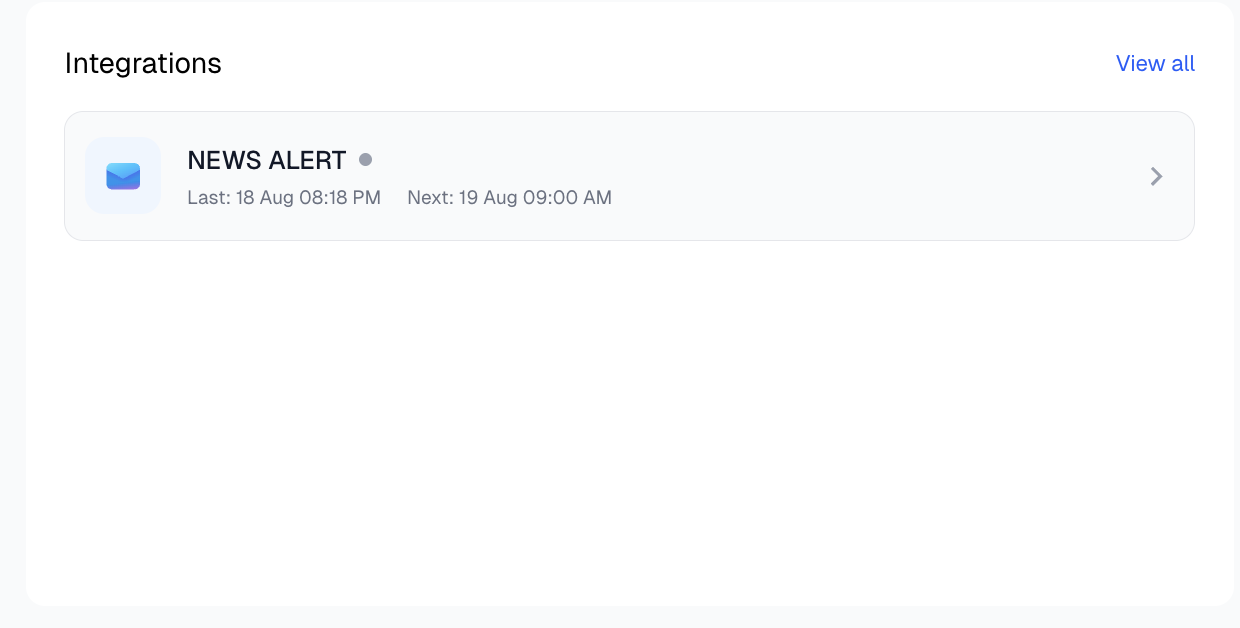
* **Recent Integrations**: You'll see a card showcasing your 2 most recent integrations, including their:
* Integration type (e.g. Slack, Discord, Email)
* Status (active/inactive)
* Last run & Next run
### On the dashboard you also find the following:
* **Recent Integrations**: You'll see a card showcasing your 2 most recent integrations, including their:
* Integration type (e.g. Slack, Discord, Email)
* Status (active/inactive)
* Last run & Next run
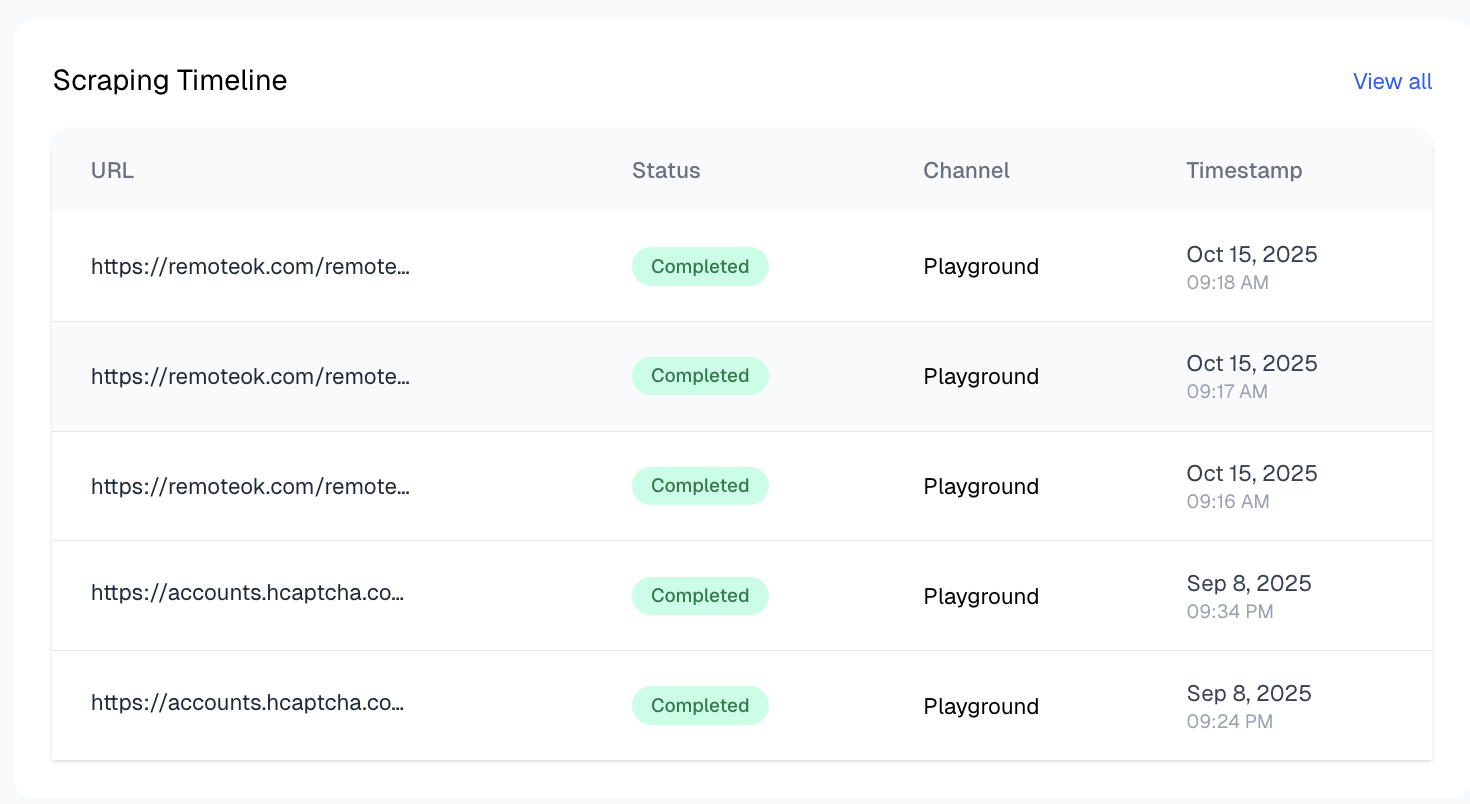
 * **Scraping Timeline**: Another card presents your Scraping Timeline, giving a high-level chronological view of recent scraping jobs.
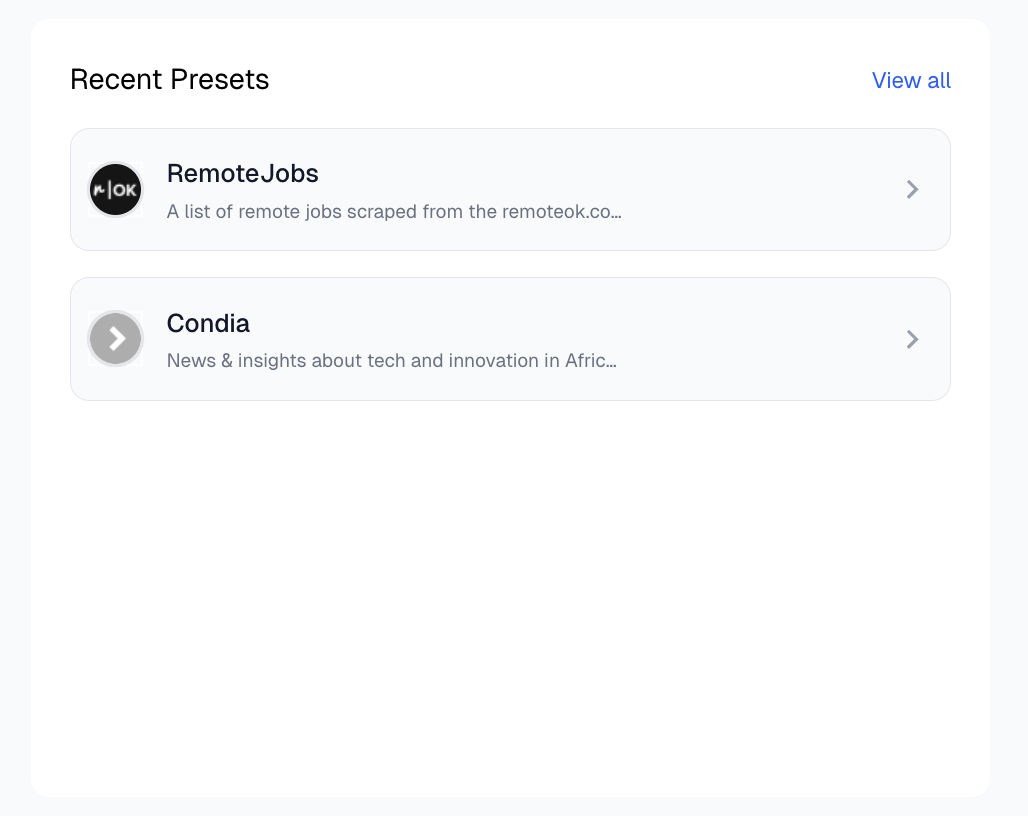
 * **Recent Presets**: The final card on the dashboard summarizes your most recently saved presets. Each card includes: preset Name & description