> ## Documentation Index
> Fetch the complete documentation index at: https://docs.spidra.io/llms.txt
> Use this file to discover all available pages before exploring further.
# API Keys
> Create, name, and revoke Spidra API keys from the dashboard. Pass your key as a Bearer token on API requests.
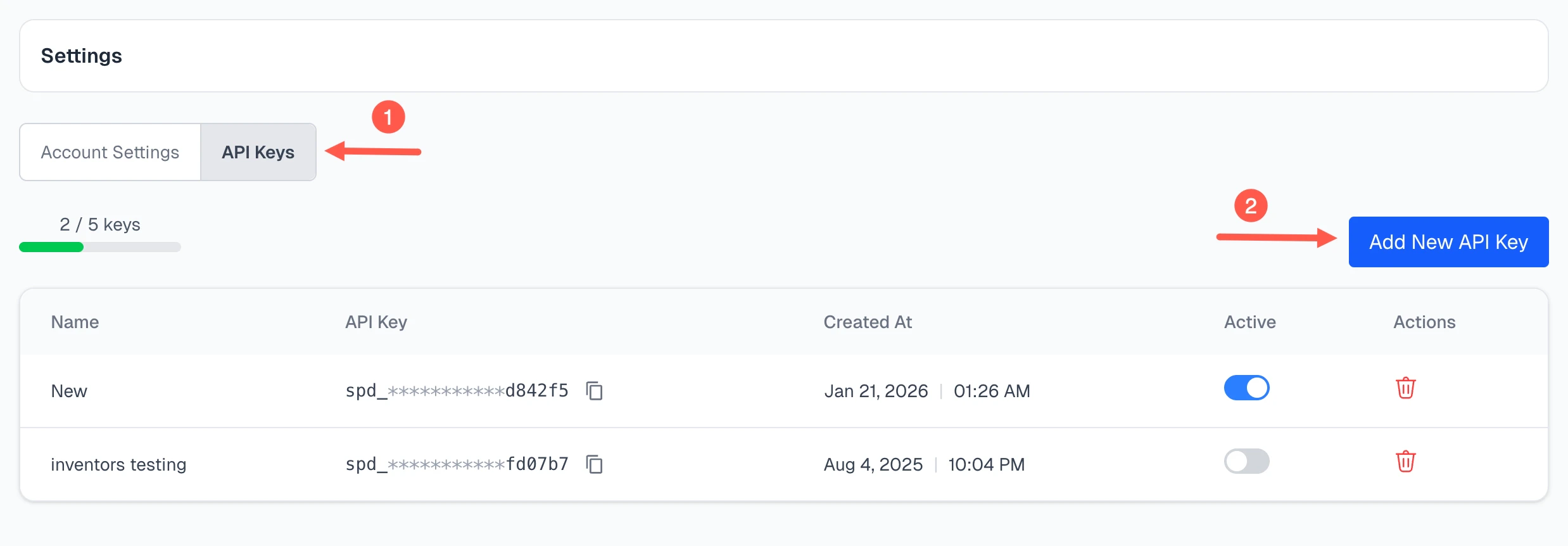
Every request you make to the Spidra API must include an API key. You manage your keys from the Settings page in your dashboard under the **API Keys** tab.
 ## Creating an API Key
1. Go to [Settings](https://app.spidra.io/dashboard/settings?tab=api) in your dashboard.
## Creating an API Key
1. Go to [Settings](https://app.spidra.io/dashboard/settings?tab=api) in your dashboard.
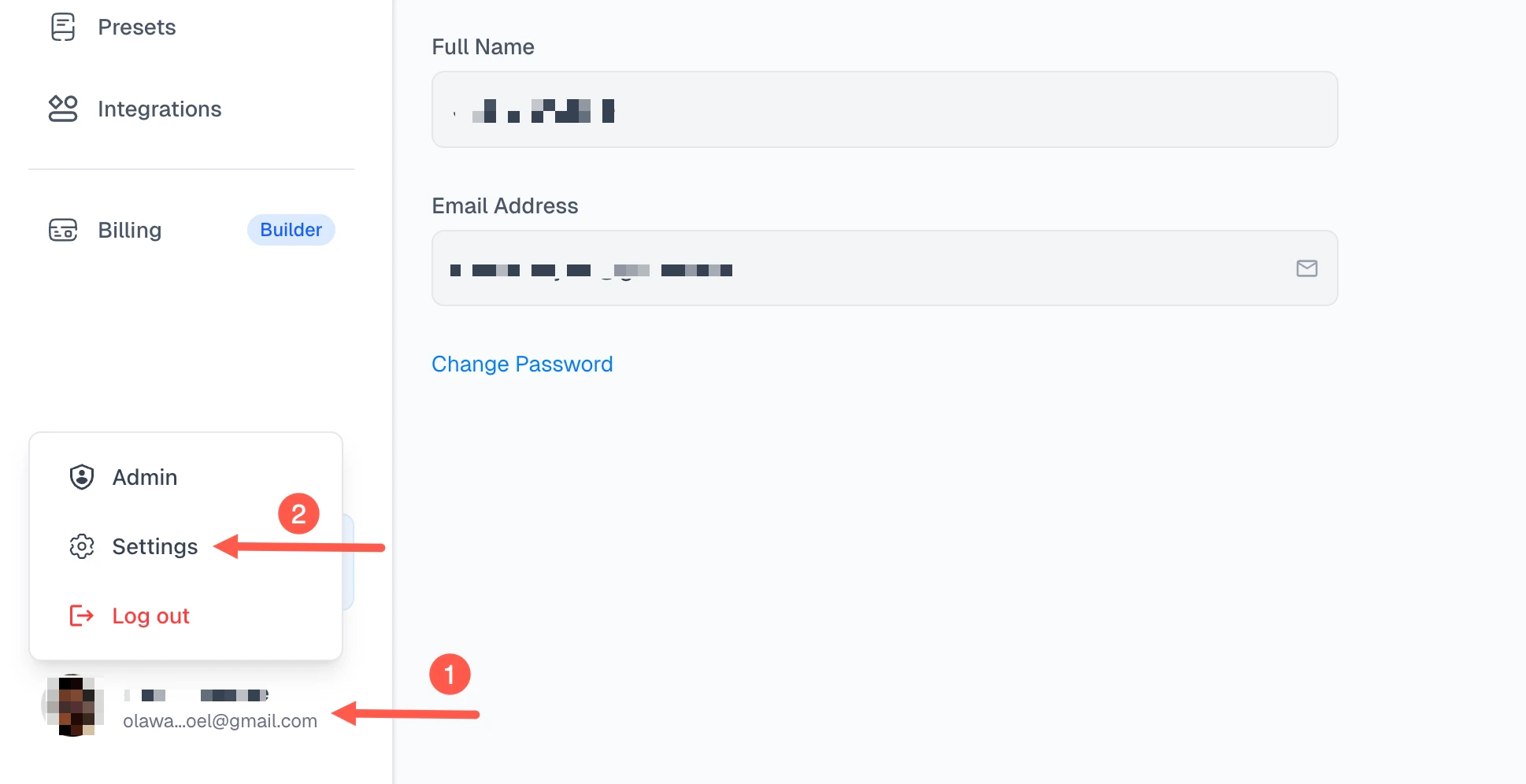 2. Click **Add New API Key**.
3. Give the key a name so you can identify it later, for example "Production" or "Local Dev".
4. Click **Create API Key**.
The key appears in your list immediately. You can copy it using the copy icon next to the masked value.
## Using Your API Key
Pass your API key as a Bearer token:
```bash theme={null}
curl -X POST https://api.spidra.io/api/scrape \
-H "Authorization: Bearer YOUR_API_KEY" \
-H "Content-Type: application/json" \
-d '{"urls": [{"url": "https://example.com"}], "prompt": "Extract the page title"}'
```
See the [API Reference](/api-reference/introduction) for full details on authentication.
## Managing Your Keys
You can have up to **5 API keys** on your account. The Settings page shows a usage bar so you can see how many you have active.
### Disabling a key
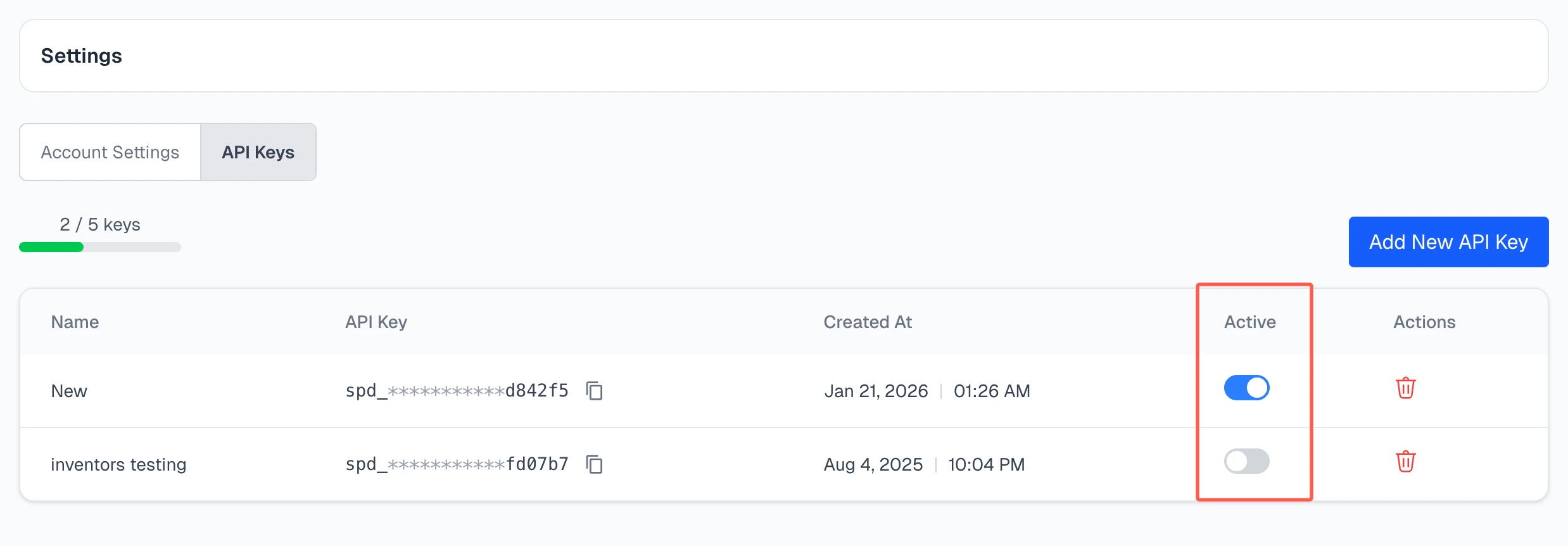
Toggle the **Active** switch next to any key to disable it without deleting it. Disabled keys are rejected by the API. This is useful if you suspect a key has been exposed but want to keep it around temporarily.
2. Click **Add New API Key**.
3. Give the key a name so you can identify it later, for example "Production" or "Local Dev".
4. Click **Create API Key**.
The key appears in your list immediately. You can copy it using the copy icon next to the masked value.
## Using Your API Key
Pass your API key as a Bearer token:
```bash theme={null}
curl -X POST https://api.spidra.io/api/scrape \
-H "Authorization: Bearer YOUR_API_KEY" \
-H "Content-Type: application/json" \
-d '{"urls": [{"url": "https://example.com"}], "prompt": "Extract the page title"}'
```
See the [API Reference](/api-reference/introduction) for full details on authentication.
## Managing Your Keys
You can have up to **5 API keys** on your account. The Settings page shows a usage bar so you can see how many you have active.
### Disabling a key
Toggle the **Active** switch next to any key to disable it without deleting it. Disabled keys are rejected by the API. This is useful if you suspect a key has been exposed but want to keep it around temporarily.
 ### Deleting a key
Click the delete icon next to a key to remove it permanently. Any running integration or application using that key will stop working immediately.
You cannot delete your last remaining key. You must always have at least one key on your account.
### Deleting a key
Click the delete icon next to a key to remove it permanently. Any running integration or application using that key will stop working immediately.
You cannot delete your last remaining key. You must always have at least one key on your account.